About Me
My hobbies are PSP.
I love helping my friends who are starting with PSP.
Any similarity or resemblance to any other tutorial is purely coincidental and unintentional. Pls do not recopy my tutorials anywhere. Many thanks Susan.


Credit
Blinkie created by Rabid Designz. She does some amazing work ! Thanks so much Melissa.

Blinkie created by my long time friend tweety here. Thanks so much my friend :)
My blog was designed By Alika's Scraps. Thanks so much. You did an amazing job !

Wednesday, August 26, 2009
 Stalker Alert Tut
12:08 PM | Posted by
Shal |
 Edit Post
Edit Post

Feel free to use my tutorial as a guide and
have fun giving it your own spin.
This tutorial assumes you have a working knowledge of PSP.
Needed Supplies & Filters :
Tube of Choice .. I am using the work of Ismael Rac which you must have a license to use. I am licensed through Artistic Minds Inc. but they are now closed. You can now find Ismael's artwork licensed through his own store. Pls do not use his work without purchasing through here.
Template of Choice .. I have used a great template from Sharon at Dolly's Tag World (Template 2), which can be downloaded on her blog here. Pls visit her blog for more great templates.
Mask of Choice .. I have used WSL_84 which can be downloaded from weescotslass here.
Word Art of Choice .. I have used some wonderful art by DragonflyMaiden from the Rac Stalker forum. She has allowed me to include it with this tut and you can download it here. Please visit the forum here for more of great word art.
Filters required ... Xenofex (Constellation), Xero (Fritillary) & Eye Candy (Gradient Glow)
Font of Choice .. I am using Futurist Fixed Width
Let's get started !
Open your mask & template in PSP, duplicate and close original.
Delete copyright layers and image/canvas size 650x650. Floodfill background layer with white.
Choose a darker color from your tube for your background and a lighter color for your foreground. I have used #1b3c8a & #6bb6de
New raster layer just above your background layer. Floodfill with your foreground color.
New mask layer from image, WSL_84, invert mask data unchecked, and merge group.
New raster layer and floodfill with your background color.
New mask layer from image, WSL_84, invert mask data unchecked, and merge group. Resize 90% and lower opacity of this layer 75%.
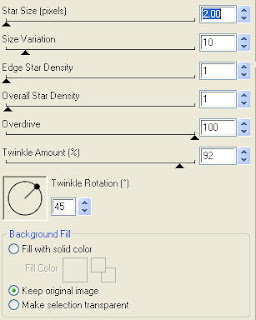
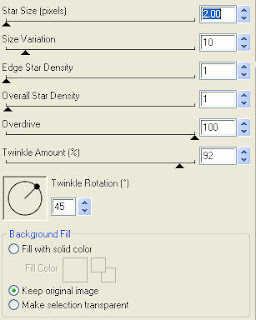
Effects/Xenofex/Constellation with the following settings:
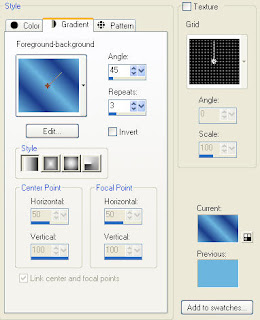
Select Rectangle 1 layer, Select All, Float, Defloat, New Raster Layer, floodfill with a gradient from your 2 selected colors .. i have used these settings:
Select none and delete original layer.
Effects/Xero Fritillary with the following settings 7/160/30/45.
Select Rectangle Border 1 layer, Select All, Float, Defloat, New Raster Layer, floodfill with your darker color. Select none. Adjust/add remove noise/add noise with settings uniform/15%/monochrome checked. Add drop shadow. I have used 2/2/40/4 throughout. Delete original layer.
Repeat the same steps for Rectangle 2 and Rectangle Border 2 layers.
Select Starburst layer, Select All, Float, Defloat, New Raster Layer, floodfill with your darker color, copy and paste your selected close up tube, position within your star, selections/invert, delete. Select none. Change blend mode to luminance and delete your original layer.
Select Starburst Border layer, Select All, Float, Defloat, New Raster Layer, floodfill with your darker color. Select none. Adjust/add remove noise/add noise with settings uniform/15%/monochrome checked. Add drop shadow.
Merge down your 3 layers for your starburst (border, tube, background).
Copy and paste your full size tube. Resize as necessary and reposition your starburst layer if needed.
Copy and paste your word art. Add a gradient glow with settings Width 3, Fat, color #6bb6de and drop shadow.
X out white background, merge visible.
Open white background, resize to your liking (I used 500x500).
Add copyright. Add your name .. I used Futurist Fixed Width Size color black and added the same gradient glow as previous and dark shadow.
Save and you are done.
I hope you have enjoyed my tutorial.
Please feel free to send me your results.
I'd love to see what you came up with.
This tutorial assumes you have a working knowledge of PSP.
Needed Supplies & Filters :
Tube of Choice .. I am using the work of Ismael Rac which you must have a license to use. I am licensed through Artistic Minds Inc. but they are now closed. You can now find Ismael's artwork licensed through his own store. Pls do not use his work without purchasing through here.
Template of Choice .. I have used a great template from Sharon at Dolly's Tag World (Template 2), which can be downloaded on her blog here. Pls visit her blog for more great templates.
Mask of Choice .. I have used WSL_84 which can be downloaded from weescotslass here.
Word Art of Choice .. I have used some wonderful art by DragonflyMaiden from the Rac Stalker forum. She has allowed me to include it with this tut and you can download it here. Please visit the forum here for more of great word art.
Filters required ... Xenofex (Constellation), Xero (Fritillary) & Eye Candy (Gradient Glow)
Font of Choice .. I am using Futurist Fixed Width
Let's get started !
Open your mask & template in PSP, duplicate and close original.
Delete copyright layers and image/canvas size 650x650. Floodfill background layer with white.
Choose a darker color from your tube for your background and a lighter color for your foreground. I have used #1b3c8a & #6bb6de
New raster layer just above your background layer. Floodfill with your foreground color.
New mask layer from image, WSL_84, invert mask data unchecked, and merge group.
New raster layer and floodfill with your background color.
New mask layer from image, WSL_84, invert mask data unchecked, and merge group. Resize 90% and lower opacity of this layer 75%.
Effects/Xenofex/Constellation with the following settings:

Select Rectangle 1 layer, Select All, Float, Defloat, New Raster Layer, floodfill with a gradient from your 2 selected colors .. i have used these settings:

Select none and delete original layer.
Effects/Xero Fritillary with the following settings 7/160/30/45.
Select Rectangle Border 1 layer, Select All, Float, Defloat, New Raster Layer, floodfill with your darker color. Select none. Adjust/add remove noise/add noise with settings uniform/15%/monochrome checked. Add drop shadow. I have used 2/2/40/4 throughout. Delete original layer.
Repeat the same steps for Rectangle 2 and Rectangle Border 2 layers.
Select Starburst layer, Select All, Float, Defloat, New Raster Layer, floodfill with your darker color, copy and paste your selected close up tube, position within your star, selections/invert, delete. Select none. Change blend mode to luminance and delete your original layer.
Select Starburst Border layer, Select All, Float, Defloat, New Raster Layer, floodfill with your darker color. Select none. Adjust/add remove noise/add noise with settings uniform/15%/monochrome checked. Add drop shadow.
Merge down your 3 layers for your starburst (border, tube, background).
Copy and paste your full size tube. Resize as necessary and reposition your starburst layer if needed.
Copy and paste your word art. Add a gradient glow with settings Width 3, Fat, color #6bb6de and drop shadow.
X out white background, merge visible.
Open white background, resize to your liking (I used 500x500).
Add copyright. Add your name .. I used Futurist Fixed Width Size color black and added the same gradient glow as previous and dark shadow.
Save and you are done.
I hope you have enjoyed my tutorial.
Please feel free to send me your results.
I'd love to see what you came up with.
 Labels:

Monday, August 24, 2009
Adams Pink Fantasia
5:09 PM | Posted by
Shal |
Edit Post
Edit Post
 Feel free to use my tutorial as a guide and
have fun giving it your own spin.
This tutorial assumes you have a working knowledge of PSP.
Needed Supplies & Filters :
Scrap Kit of Choice .. I have used a gorgeous PTU kit from Bits n Bobs called Fantasia,
which can be purchased here.
Tube of Choice .. I am using the adorable work of Joel Adams which you must have a license to use. Please do not use his work without purchasing through CILM here.
Mask of Choice .. I have used BabesDesignz_Mask13
which can be downloaded from her blog here.
Filters required ... Xenofex Constellation & Eye Candy Gradient Glow (both optional)
Font of Choice .. I have used Feel Script
Let's get started !
New Image 600x600 and floodfill with white. Open your mask in PSP.
Copy and paste Paper 1 just above your background layer. New mask layer from image, BabesDesignz_Mask13, invert mask data checked, and merge group.
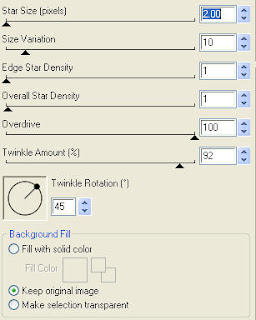
Effects, Xenofex, Constellation, Settings as follows.
Copy and paste Frame 3 and drop shadow. I have used 2/2/40/4 throughout.
Copy and paste diamond rain 3, resize 40% and position in the centre of your frame layer.
Move rain layer below your frame layer.
Copy and paste grass and position towards the bottom of your frame.
Drop shadow and move layer down below your frame layer.
Copy and paste bench, resize 65%, drop shadow and position to the right.
Copy and paste bubbles 3, resize 50%, drop shadow. Position to the top right of your frame.
Layer duplicate, image mirror and lower down a bit.
Copy and paste dove 3, resize 50%, drop shadow.
Position to the top right of your frame on top of your bubbles.
Copy and paste flower 1, resize 40%, drop shadow. Position on the bottom of your frame a lil left of centre. Layer/duplicate and image/mirror.
Copy and paste flower 3, resize 35%, drop shadow. Position in the centre of your 2 other flowers.
Copy and paste string ribbon 1, resize 65%, drop shadow. Move this layer down below your flower layers and position to the right a bit.
Layer duplicate/Image mirror.
Copy and paste your tube and drop shadow.
X out white background, merge visible.
Open white background, resize to your liking (I used 500x500).
Add copyright.
Add your name .. I used Feel Script, Size 72 color #97c0cf and added
a gradient glow with settings Width 3, Fat, White. Add drop shadow.
Save and you are done.
I hope you have enjoyed my tutorial. This kit has many great elements,
so pls feel free to experiment and use my tutorial as a guide.
Please feel free to send me your results.
I'd love to see what you came up with.
This tutorial assumes you have a working knowledge of PSP.
Needed Supplies & Filters :
Scrap Kit of Choice .. I have used a gorgeous PTU kit from Bits n Bobs called Fantasia,
which can be purchased here.
Tube of Choice .. I am using the adorable work of Joel Adams which you must have a license to use. Please do not use his work without purchasing through CILM here.
Mask of Choice .. I have used BabesDesignz_Mask13
which can be downloaded from her blog here.
Filters required ... Xenofex Constellation & Eye Candy Gradient Glow (both optional)
Font of Choice .. I have used Feel Script
Let's get started !
New Image 600x600 and floodfill with white. Open your mask in PSP.
Copy and paste Paper 1 just above your background layer. New mask layer from image, BabesDesignz_Mask13, invert mask data checked, and merge group.
Effects, Xenofex, Constellation, Settings as follows.

Copy and paste Frame 3 and drop shadow. I have used 2/2/40/4 throughout.
Copy and paste diamond rain 3, resize 40% and position in the centre of your frame layer.
Move rain layer below your frame layer.
Copy and paste grass and position towards the bottom of your frame.
Drop shadow and move layer down below your frame layer.
Copy and paste bench, resize 65%, drop shadow and position to the right.
Copy and paste bubbles 3, resize 50%, drop shadow. Position to the top right of your frame.
Layer duplicate, image mirror and lower down a bit.
Copy and paste dove 3, resize 50%, drop shadow.
Position to the top right of your frame on top of your bubbles.
Copy and paste flower 1, resize 40%, drop shadow. Position on the bottom of your frame a lil left of centre. Layer/duplicate and image/mirror.
Copy and paste flower 3, resize 35%, drop shadow. Position in the centre of your 2 other flowers.
Copy and paste string ribbon 1, resize 65%, drop shadow. Move this layer down below your flower layers and position to the right a bit.
Layer duplicate/Image mirror.
Copy and paste your tube and drop shadow.
X out white background, merge visible.
Open white background, resize to your liking (I used 500x500).
Add copyright.
Add your name .. I used Feel Script, Size 72 color #97c0cf and added
a gradient glow with settings Width 3, Fat, White. Add drop shadow.
Save and you are done.
I hope you have enjoyed my tutorial. This kit has many great elements,
so pls feel free to experiment and use my tutorial as a guide.
Please feel free to send me your results.
I'd love to see what you came up with.
Sunday, August 23, 2009
Fairy Vision in Blue Tut
3:12 PM | Posted by
Shal |
Edit Post
Edit Post
 Feel free to use my tutorial as a guide and
have fun giving it your own spin.
This tutorial assumes you have a working knowledge of PSP.
Needed Supplies & Filters :
Scrap Kit of Choice .. I have used a gorgeous PTU kit from Cora called The Elements: Water, which can be purchased here.
This is a wonderful kit with 3 others in the collection .. Earth, Wind & Fire.
These can purchased seperately or as a collection.
Template of Choice .. I have used a great template from Cheri Template #32,
which can be downloaded on her blog here.
Mask of Choice .. I have used WSL_63 which can be downloaded from weescotslass here.
Tube of Choice .. I am using the work of Susan McKivergan which you must have a license to use. Please do not use her work without purchasing through Up Your Art here. I am licensed through Artistic Minds Inc. but they are now closed.
Filters required ... Penta.com (Dot & Cross) & Eye Candy (Gradient Glow) .. both optional
Font of Choice .. I am using Mea Culpa
Let's get started !
Open your mask and template in PSP.
On your template, duplicate and close original. Delete copyright layer.
Open Paper 1 and copy and paste just above your background layer. New mask layer from image, WSL_63, invert mask data unchecked, and merge group. Resize mask layer 110%.
Now we will start filling our template layers. This is the part where you can play with different papers but the technique is the same.
Select Raster5 layer, Select All, Float, Defloat. Open Paper 2 from your kit. Copy and paste as new layer on your project. Selections/invert/ and hit delete. Selections/None and delete original layer.
Adjust/Add Remove Noise/Add Noise with settings Uniform/35%/Monochrome checked. Drop shadow. I have used 2/2/40/4 black throughout.
Select Raster 2 layer, Select All, Float, Defloat. Open Paper 1 from your kit. Copy and paste as new layer on your project. Selections/invert/ and hit delete. Selections/None and delete original layer.
Add a gradient glow with settings Width 3, Fat, White and drop shadow.
Select Raster 3 layer, Select All, Float, Defloat. Open Paper 3 from your kit. Copy and paste as new layer on your project. Selections/invert/ and hit delete. Selections/None and delete original layer. Drop shadow.
Select Raster 4 layer, Select All, Float, Defloat. Open Paper 4 from your kit. Copy and paste as new layer on your project. Selections/invert/ and hit delete. Selections/None and delete original layer. Drop shadow.
Effect Penta.com/Dot and Cross with settings 72/10/2.
Copy and paste waterdrops, resize 50%, Image/Mirror, Image/Free Rotate/Left 30 and drop shadow. Position to the lower right.
Copy and paste sea weed, resize 50% and drop shadow.
Copy and paste ribbon 2, resize 40%, , drop shadow. Position to the top left side.
Layer duplicate, image mirror and Image/Roate/Free Rotate/Right 15.
Copy and paste flower 3, resize 40%, Image/Rotate/Free Rotate/Left 125, drop shadow. Position on the lower left side.
Layer duplicate and move up a bit. Merge down your 2 flower layers, duplicate and image mirror.
Copy and paste Butterfly, resize 40%, position top right and drop shadow.
Copy and paste Bubbles, resize 40%, position to the left of your heart frame and drop shadow.
Copy and paste flower 4, resize 25%, drop shadow, position to the lower right, duplicate and image mirror.
Copy and paste flower 1, resize 25%, drop shadow, position to the lower right, duplicate and image mirror.
Copy and paste flower 5, resize 25%, drop shadow, position to the center of your other flowers.
Copy and paste your tube and drop shadow.
X out white background, merge visible. Open white background, resize to your liking (I used 500x500).
Add copyright. Add your name .. I used Mea Culpa Size 72 color #1f272f and added
a gradient glow color #c8d3d9 and drop shadow.
Save and you are done.
I hope you have enjoyed my tutorial. Please feel free to send me your results. I'd love to see what you came up with.
This tutorial assumes you have a working knowledge of PSP.
Needed Supplies & Filters :
Scrap Kit of Choice .. I have used a gorgeous PTU kit from Cora called The Elements: Water, which can be purchased here.
This is a wonderful kit with 3 others in the collection .. Earth, Wind & Fire.
These can purchased seperately or as a collection.
Template of Choice .. I have used a great template from Cheri Template #32,
which can be downloaded on her blog here.
Mask of Choice .. I have used WSL_63 which can be downloaded from weescotslass here.
Tube of Choice .. I am using the work of Susan McKivergan which you must have a license to use. Please do not use her work without purchasing through Up Your Art here. I am licensed through Artistic Minds Inc. but they are now closed.
Filters required ... Penta.com (Dot & Cross) & Eye Candy (Gradient Glow) .. both optional
Font of Choice .. I am using Mea Culpa
Let's get started !
Open your mask and template in PSP.
On your template, duplicate and close original. Delete copyright layer.
Open Paper 1 and copy and paste just above your background layer. New mask layer from image, WSL_63, invert mask data unchecked, and merge group. Resize mask layer 110%.
Now we will start filling our template layers. This is the part where you can play with different papers but the technique is the same.
Select Raster5 layer, Select All, Float, Defloat. Open Paper 2 from your kit. Copy and paste as new layer on your project. Selections/invert/ and hit delete. Selections/None and delete original layer.
Adjust/Add Remove Noise/Add Noise with settings Uniform/35%/Monochrome checked. Drop shadow. I have used 2/2/40/4 black throughout.
Select Raster 2 layer, Select All, Float, Defloat. Open Paper 1 from your kit. Copy and paste as new layer on your project. Selections/invert/ and hit delete. Selections/None and delete original layer.
Add a gradient glow with settings Width 3, Fat, White and drop shadow.
Select Raster 3 layer, Select All, Float, Defloat. Open Paper 3 from your kit. Copy and paste as new layer on your project. Selections/invert/ and hit delete. Selections/None and delete original layer. Drop shadow.
Select Raster 4 layer, Select All, Float, Defloat. Open Paper 4 from your kit. Copy and paste as new layer on your project. Selections/invert/ and hit delete. Selections/None and delete original layer. Drop shadow.
Effect Penta.com/Dot and Cross with settings 72/10/2.
Copy and paste waterdrops, resize 50%, Image/Mirror, Image/Free Rotate/Left 30 and drop shadow. Position to the lower right.
Copy and paste sea weed, resize 50% and drop shadow.
Copy and paste ribbon 2, resize 40%, , drop shadow. Position to the top left side.
Layer duplicate, image mirror and Image/Roate/Free Rotate/Right 15.
Copy and paste flower 3, resize 40%, Image/Rotate/Free Rotate/Left 125, drop shadow. Position on the lower left side.
Layer duplicate and move up a bit. Merge down your 2 flower layers, duplicate and image mirror.
Copy and paste Butterfly, resize 40%, position top right and drop shadow.
Copy and paste Bubbles, resize 40%, position to the left of your heart frame and drop shadow.
Copy and paste flower 4, resize 25%, drop shadow, position to the lower right, duplicate and image mirror.
Copy and paste flower 1, resize 25%, drop shadow, position to the lower right, duplicate and image mirror.
Copy and paste flower 5, resize 25%, drop shadow, position to the center of your other flowers.
Copy and paste your tube and drop shadow.
X out white background, merge visible. Open white background, resize to your liking (I used 500x500).
Add copyright. Add your name .. I used Mea Culpa Size 72 color #1f272f and added
a gradient glow color #c8d3d9 and drop shadow.
Save and you are done.
I hope you have enjoyed my tutorial. Please feel free to send me your results. I'd love to see what you came up with.
Saturday, August 22, 2009
A Gothic Wonderland Inspiration
11:24 PM | Posted by
Shal |
Edit Post
Edit Post
My good friend Dite was inspired by my Gothic Wonderland Tuts to create this gorgeous taggy.
I just needed to show it off. She used parts of my tutorial and then used her own inspirations to come up with this ! Gorgeous job Dite !

I just needed to show it off. She used parts of my tutorial and then used her own inspirations to come up with this ! Gorgeous job Dite !

2 more tags from my Xeracx Stalker Tut
11:20 PM | Posted by
Shal |
Edit Post
Edit Post
2 more lovely ladies from the Stalker forum tried my lil tutorial and I just had to show them off. The first is from PA Cream and the second is from NyghtBloom.
Thanks so much ladies .. gorgeous jobs !


Gothic Wonderland Take 2 Tut
12:35 PM | Posted by
Shal |
Edit Post
Edit Post

Feel free to use my tutorial as a guide and
have fun giving it your own spin.
This tutorial assumes you have a working knowledge of PSP.
Needed Supplies & Filters :
 Copy and paste Paper 19, selections invert, delete.
Move your paper layer below your frame layer. Do not deselect.
Open your close up tube, resize 65%, delete. Selections none. Layer duplicate, image mirror.
Change blend mode of both your tube layers to luminance (L) and turn opacity down to 50.
Drop shadow your frame. I use 2/2/40/4 throughout.
Copy and paste bow 4, resize 50%, drop shadow. Position to the top left of your frame.
Layer duplicate and position to the top right of your frame.
Copy and paste key silver blue, resize 65%, drop shadow.
Position to the right side of your frame just below your bow. See my tag for placement.
Copy and paste heart pendant 2, resize 50%, drop shadow.
Position to the left side of your frame just below your bow.
Copy and paste flower 1, resize 50%, drop shadow. Position to the bottom left of your frame. Layer duplicate and position to the bottom right of your frame.
Copy and paste teaset pot, resize 30%, drop shadow. Position to the bottom left.
Copy and paste teaset cup and saucer, resize 30%, drop shadow. Position to the bottom right.
Copy and paste teaset spoon, resize 65%, drop shadow, image mirror.
Position next to your cup and saucer.
Copy and paste your full size tube, resize 85% and drop shadow.
X out white background, merge visible.
Open white background, resize to your liking (I used a width of 550).
Add copyright. Add your name. I used Impact, Size 60. I used Paper 4 as my bacgkround pattern, Angle 0, Scale 75 and black for my foreground with a stroke width of 2.
I then added a gradient glow with settings Width 3, Fat, White. Add drop shadow.
Save and you are done.
I hope you have enjoyed my tutorial. This kit has oodles of great elements, so pls feel free to experiment and use my tutorial as a guide.
Please feel free to send me your results.
I'd love to see what you came up with.
have fun giving it your own spin.
This tutorial assumes you have a working knowledge of PSP.
Needed Supplies & Filters :
Tube of Choice .. I am using the work of Chrissy Clark which you must have a license to use. Please do not use her work without purchasing through My Tag Art here.
Pls note mine is licensed through AMI where her art was previously sold.
Scrap Kit of Choice .. I have used a gorgeous PTU kit from Monti called Gothic Wonderland, which can be purchased at Artistic Minds Inc here.
Mask of Choice .. I have used WSL_220 which can be downloaded from weescotslass here.
Filters required ... Eye Candy Gradient Glow (optional)
Font of Choice .. I have used Impact
Let's get started !
New Image 650x500 and floodfill with white. Open your mask in PSP.
Copy and paste Paper 13 just above your background layer. New mask layer from image, WSL_220, invert mask data unchecked, and merge group.
Copy and paste Frame 14. Resize 85%.
Using your freehand selection tool, select an area similar to this
 Copy and paste Paper 19, selections invert, delete.
Move your paper layer below your frame layer. Do not deselect.
Open your close up tube, resize 65%, delete. Selections none. Layer duplicate, image mirror.
Change blend mode of both your tube layers to luminance (L) and turn opacity down to 50.
Drop shadow your frame. I use 2/2/40/4 throughout.
Copy and paste bow 4, resize 50%, drop shadow. Position to the top left of your frame.
Layer duplicate and position to the top right of your frame.
Copy and paste key silver blue, resize 65%, drop shadow.
Position to the right side of your frame just below your bow. See my tag for placement.
Copy and paste heart pendant 2, resize 50%, drop shadow.
Position to the left side of your frame just below your bow.
Copy and paste flower 1, resize 50%, drop shadow. Position to the bottom left of your frame. Layer duplicate and position to the bottom right of your frame.
Copy and paste teaset pot, resize 30%, drop shadow. Position to the bottom left.
Copy and paste teaset cup and saucer, resize 30%, drop shadow. Position to the bottom right.
Copy and paste teaset spoon, resize 65%, drop shadow, image mirror.
Position next to your cup and saucer.
Copy and paste your full size tube, resize 85% and drop shadow.
X out white background, merge visible.
Open white background, resize to your liking (I used a width of 550).
Add copyright. Add your name. I used Impact, Size 60. I used Paper 4 as my bacgkround pattern, Angle 0, Scale 75 and black for my foreground with a stroke width of 2.
I then added a gradient glow with settings Width 3, Fat, White. Add drop shadow.
Save and you are done.
I hope you have enjoyed my tutorial. This kit has oodles of great elements, so pls feel free to experiment and use my tutorial as a guide.
Please feel free to send me your results.
I'd love to see what you came up with.
Friday, August 21, 2009
Gothic Wonderland Tut
3:31 PM | Posted by
Shal |
Edit Post
Edit Post
 Feel free to use my tutorial as a guide and
have fun giving it your own spin.
This tutorial assumes you have a working knowledge of PSP.
Needed Supplies & Filters :
Tube of Choice .. I am using the work of Chrissy Clark which you must have a license to use. Please do not use her work without purchasing through My Tag Art here.
 Copy and paste Frame 10. Resize 90%.
Using your magic wand, select the middle part of your frame, selections/modify/expand 3.
Copy and paste Paper 24, selections invert, delete, selections none.
Move this layer just below your frame layer.
Drop shadow your frame. I use 2/2/40/4 throughout.
Copy and paste Wonderland Clock Face, resize 110% and drop shadow.
Copy and paste Flower 2, resize 50% and drop shadow. Position to the lower left of your frame. Layer duplicate and image mirror.
Copy and paste Flower 6, resize 50% and drop shadow.
Position to the center of your other 2 flowers.
Copy and paste Bow 6, resize 50%, drop shadow and position on your middle flower.
Copy and paste Heart Pendant 2, resize 50% and drop shadow.
Position to the right side of your clock face.
Copy and paste your chosen tube, resize accordingly and drop shadow.
Copy and paste White Rabbit Running, resize 50%, image rotate left/30 degrees, drop shadow. Position to the bottom left of your frame.
Copy and paste Tea Set Spoon, drop shadow, image mirror and position the to the right.
Copy and paste Butterfly 6, resize 30%, drop shadow and position to the top left.
Image rotate right/15 degrees.
Layer duplicate, image mirror and position a lil lower.
X out white background, merge visible.
Open white background, resize to your liking (I used 500x500).
Add copyright. Add your name .. I used French Script, Size 72 black and added
a gradient glow with settings Width 3, Fat, White. Add drop shadow.
Save and you are done.
I hope you have enjoyed my tutorial. This kit has oodles of great elements, so pls feel free to experiment and use my tutorial as a guide.
Please feel free to send me your results.
I'd love to see what you came up with.
This tutorial assumes you have a working knowledge of PSP.
Needed Supplies & Filters :
Tube of Choice .. I am using the work of Chrissy Clark which you must have a license to use. Please do not use her work without purchasing through My Tag Art here.
Pls note mine is licensed through AMI where her art was previously sold.
Scrap Kit of Choice .. I have used a gorgeous PTU kit from Monti called Gothic Wonderland, which can be purchased at Artistic Minds Inc here.
Mask of Choice .. I have used WSL_325 which can be downloaded from weescotslass here.
Filters required ... Xenofex Constellation & Eye Candy Gradient Glow (both optional)
Font of Choice .. I have used Feel Script
Let's get started !
New Image 600x600 and floodfill with white. Open your mask in PSP.
Copy and paste Paper 27 just above your background layer. New mask layer from image, WSL_325, invert mask data unchecked, and merge group.
Effects, Xenofex, Constellation, Settings as follows.
 Copy and paste Frame 10. Resize 90%.
Using your magic wand, select the middle part of your frame, selections/modify/expand 3.
Copy and paste Paper 24, selections invert, delete, selections none.
Move this layer just below your frame layer.
Drop shadow your frame. I use 2/2/40/4 throughout.
Copy and paste Wonderland Clock Face, resize 110% and drop shadow.
Copy and paste Flower 2, resize 50% and drop shadow. Position to the lower left of your frame. Layer duplicate and image mirror.
Copy and paste Flower 6, resize 50% and drop shadow.
Position to the center of your other 2 flowers.
Copy and paste Bow 6, resize 50%, drop shadow and position on your middle flower.
Copy and paste Heart Pendant 2, resize 50% and drop shadow.
Position to the right side of your clock face.
Copy and paste your chosen tube, resize accordingly and drop shadow.
Copy and paste White Rabbit Running, resize 50%, image rotate left/30 degrees, drop shadow. Position to the bottom left of your frame.
Copy and paste Tea Set Spoon, drop shadow, image mirror and position the to the right.
Copy and paste Butterfly 6, resize 30%, drop shadow and position to the top left.
Image rotate right/15 degrees.
Layer duplicate, image mirror and position a lil lower.
X out white background, merge visible.
Open white background, resize to your liking (I used 500x500).
Add copyright. Add your name .. I used French Script, Size 72 black and added
a gradient glow with settings Width 3, Fat, White. Add drop shadow.
Save and you are done.
I hope you have enjoyed my tutorial. This kit has oodles of great elements, so pls feel free to experiment and use my tutorial as a guide.
Please feel free to send me your results.
I'd love to see what you came up with.
Subscribe to:
Posts (Atom)
Kits & Tuts





Blogs I Love