About Me
My hobbies are PSP.
I love helping my friends who are starting with PSP.
Any similarity or resemblance to any other tutorial is purely coincidental and unintentional. Pls do not recopy my tutorials anywhere. Many thanks Susan.


Credit
Blinkie created by Rabid Designz. She does some amazing work ! Thanks so much Melissa.

Blinkie created by my long time friend tweety here. Thanks so much my friend :)
My blog was designed By Alika's Scraps. Thanks so much. You did an amazing job !

Friday, September 4, 2009
 Feels Like Autumn
7:16 PM | Posted by
Shal |
 Edit Post
Edit Post
 Feel free to use my tutorial as a guide and
have fun giving it your own spin.
This tutorial assumes you have a working knowledge of PSP.
Needed Supplies & Filters :
Scrap Kit of Choice .. I have used a gorgeous PTU kit from Bits n Bobs called Feels Like Autumn, which can be purchased exclusively at Artistic Minds Inc. here.
Tube of Choice .. I am using the work of Susan McKivergan which you must have a license to use. Please do not use her work without purchasing through Up Your Art here. I am licensed through Artistic Minds Inc. but they are now closed.
Mask of Choice .. I have used WSL_Mask84 which can be downloaded from weescotslass here. Yes I do love this mask.
Filters required ... Xenofex/Constellation and Eye Candy/Gradient Glow (both optional)
Font of Choice .. I have used Jilly Nilly.
Let's get started !
New Image 600x600 and floodfill with white. Open your mask in PSP.
Copy and paste paper 6. New mask layer from image, WSL_Mask84, invert mask data unchecked, and merge group. Image resize 105%
Copy and paste Paper 10. New mask layer from image, WSL_Mask84, invert mask data unchecked, and merge group. Image resize 95%.
Merge both mask layers together and apply effects/xenofex/constellation
This tutorial assumes you have a working knowledge of PSP.
Needed Supplies & Filters :
Scrap Kit of Choice .. I have used a gorgeous PTU kit from Bits n Bobs called Feels Like Autumn, which can be purchased exclusively at Artistic Minds Inc. here.
Tube of Choice .. I am using the work of Susan McKivergan which you must have a license to use. Please do not use her work without purchasing through Up Your Art here. I am licensed through Artistic Minds Inc. but they are now closed.
Mask of Choice .. I have used WSL_Mask84 which can be downloaded from weescotslass here. Yes I do love this mask.
Filters required ... Xenofex/Constellation and Eye Candy/Gradient Glow (both optional)
Font of Choice .. I have used Jilly Nilly.
Let's get started !
New Image 600x600 and floodfill with white. Open your mask in PSP.
Copy and paste paper 6. New mask layer from image, WSL_Mask84, invert mask data unchecked, and merge group. Image resize 105%
Copy and paste Paper 10. New mask layer from image, WSL_Mask84, invert mask data unchecked, and merge group. Image resize 95%.
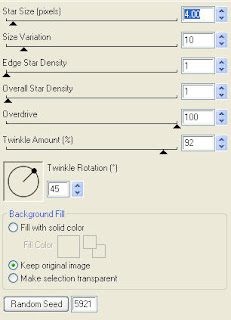
Merge both mask layers together and apply effects/xenofex/constellation
with the following settings.
Copy and paste Frame 3 and image flip. Image rotate/left 25. Center your frame.
Copy and paste your tube and image mirror. Duplicate. Move one tube layer beneath your frame layer and keep one above.
Using your magic wand, select the middle part of your frame, selections modify expand by 3. Copy and paste Paper 1, selections invert and delete. DO NOT DESELECT.
X out the tube layer ABOVE your frame. Select the tube layer that is BELOW your frame layer.
You should have something like this.
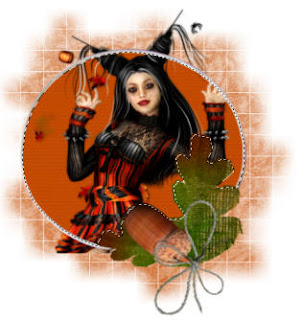 Hit delete and select none. Open your other tube layer.
Using your selection tool, draw a rectangle over the bottom portion of your tube (the portion that is longer than your frame and that is over your acord element).
You should have something like this.
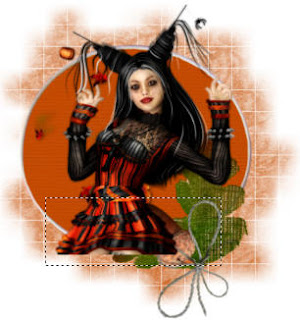 Hit delete and select none.
Select your frame background layer, select all. Copy and paste element 3, resize 85%, invert, delete. I have used 2/2/40/4 throughout. Drop shadow your frame layer.
Copy and paste parcel 4, resize 65% and position above your acorn element. Drop shadow.
Copy and paste brad 4, resize 65% and position above your parcel. Drop shadow.
Copy and paste element 1, resize 65% and position hanging from the left side of your frame.
Drop shadow.
Layer duplicate, resize 65% and mirror. Position a lil lower on the right side of your frame.
Drop shadow.
Copy and paste stars 1, resize 65% and above your last element. Drop shadow.
Copy and paste bow 4, resize 30% and position above your hanging stars. Drop shadow.
Copy and paste element 3, resize 85%. Image mirror/flip, drop shadow and move this layer down just above your mask layer. Layer duplicate and mirror.
Copy and paste element 4, resize 75%. Image flip, drop shadow and move this layer just above your last element layer. Position a lil off centre to the left.
Copy and paste element 3, resize 40%. Image flip and drop shadow.
Position on the bottom left of your frame.
Layer duplicate, image flip and mirror. Move this layer down just above your frame layer.
X out white background, merge visible. Open white background, resize to your liking (I used 500x500).
Add copyright. Add your name .. I used Jilly Nilly, Size 72 color #5b2701 and added
a gradient glow with settings Width 5, Fat, #e2bfa6. Add drop shadow.
Save and you are done.
I hope you have enjoyed my tutorial. This kit has many great elements,
so pls feel free to experiment and use my tutorial as a guide.
Please feel free to send me your results.
I'd love to see what you came up with.

Copy and paste Frame 3 and image flip. Image rotate/left 25. Center your frame.
Copy and paste your tube and image mirror. Duplicate. Move one tube layer beneath your frame layer and keep one above.
Using your magic wand, select the middle part of your frame, selections modify expand by 3. Copy and paste Paper 1, selections invert and delete. DO NOT DESELECT.
X out the tube layer ABOVE your frame. Select the tube layer that is BELOW your frame layer.
You should have something like this.
 Hit delete and select none. Open your other tube layer.
Using your selection tool, draw a rectangle over the bottom portion of your tube (the portion that is longer than your frame and that is over your acord element).
You should have something like this.
 Hit delete and select none.
Select your frame background layer, select all. Copy and paste element 3, resize 85%, invert, delete. I have used 2/2/40/4 throughout. Drop shadow your frame layer.
Copy and paste parcel 4, resize 65% and position above your acorn element. Drop shadow.
Copy and paste brad 4, resize 65% and position above your parcel. Drop shadow.
Copy and paste element 1, resize 65% and position hanging from the left side of your frame.
Drop shadow.
Layer duplicate, resize 65% and mirror. Position a lil lower on the right side of your frame.
Drop shadow.
Copy and paste stars 1, resize 65% and above your last element. Drop shadow.
Copy and paste bow 4, resize 30% and position above your hanging stars. Drop shadow.
Copy and paste element 3, resize 85%. Image mirror/flip, drop shadow and move this layer down just above your mask layer. Layer duplicate and mirror.
Copy and paste element 4, resize 75%. Image flip, drop shadow and move this layer just above your last element layer. Position a lil off centre to the left.
Copy and paste element 3, resize 40%. Image flip and drop shadow.
Position on the bottom left of your frame.
Layer duplicate, image flip and mirror. Move this layer down just above your frame layer.
X out white background, merge visible. Open white background, resize to your liking (I used 500x500).
Add copyright. Add your name .. I used Jilly Nilly, Size 72 color #5b2701 and added
a gradient glow with settings Width 5, Fat, #e2bfa6. Add drop shadow.
Save and you are done.
I hope you have enjoyed my tutorial. This kit has many great elements,
so pls feel free to experiment and use my tutorial as a guide.
Please feel free to send me your results.
I'd love to see what you came up with.
 Labels:

Wednesday, September 2, 2009
Summer Bride Tut
8:44 AM | Posted by
Shal |
Edit Post
Edit Post

Feel free to use my tutorial as a guide and
have fun giving it your own spin.
This tutorial assumes you have a working knowledge of PSP.
Needed Supplies & Filters :
Scrap Kit of Choice .. I have used a gorgeous PTU kit from Bits n Bobs called Summer Bride,
which can be purchased here.
Tube of Choice .. Part of Summer Bride kit.
Mask of Choice .. I have used BabesDesignz_Mask6
which can be downloaded from her blog here.
Font of Choice .. I have used Gwendolyn Bold.
Let's get started !
New Image 600x600 and floodfill with white. Open your mask in PSP.
New Layer, Select all, Copy and paste into selection Paper 1.
New mask layer from image, BabesDesignz_Mask6, invert mask data checked,
and merge group.
Effects, Texture Effect, Blinds with these settings 3/40 color white.
Copy and paste element 2, resize 85% and drop shadow. I have used 2/2/40/4 throughout.
Copy and paste glitter 1, resize 85% and drop shadow.
Copy and paste glitter 2, resize 75% and drop shadow.
Copy and paste frame 5, resize 65%, layer duplicate. Position one frame top left and other bottom right. See my image for placement.
Using your magic wand, select the middle portion of your frame, selections/modify/expand 3, copy and paste paper 6, selections/invert delete. Move this layer beneath your frame layer. Drop shadow frame. Repeat for your 2nd frame.
Copy and paste bow 1, resize 65%, drop shadow and position to the top of your left side frame.
Copy and paste cage 1, resize 40 percent, drop shadow and position top right side.
Copy and paste streamer 2 image/rotate/free rotate/right 90. Drop shadow and position towards the bottom. Layer duplicate and image mirror.
Copy and paste element 4, resize 40 percent, drop shadow and position bottom left side. Layer duplicate and image mirror.
Copy and paste your tube and drop shadow.
Add copyright.
Add your name .. I used Gwendolyn Bold, Size 72 color #796eb5 and added
a gradient glow with settings Width 3, Fat, White. Add drop shadow.
Save and you are done.
I hope you have enjoyed my tutorial. This kit has many beautiful elements,
so pls feel free to experiment and use my tutorial as a guide.
Please feel free to send me your results.
I'd love to see what you came up with.
have fun giving it your own spin.
This tutorial assumes you have a working knowledge of PSP.
Needed Supplies & Filters :
Scrap Kit of Choice .. I have used a gorgeous PTU kit from Bits n Bobs called Summer Bride,
which can be purchased here.
Tube of Choice .. Part of Summer Bride kit.
Mask of Choice .. I have used BabesDesignz_Mask6
which can be downloaded from her blog here.
Font of Choice .. I have used Gwendolyn Bold.
Let's get started !
New Image 600x600 and floodfill with white. Open your mask in PSP.
New Layer, Select all, Copy and paste into selection Paper 1.
New mask layer from image, BabesDesignz_Mask6, invert mask data checked,
and merge group.
Effects, Texture Effect, Blinds with these settings 3/40 color white.
Copy and paste element 2, resize 85% and drop shadow. I have used 2/2/40/4 throughout.
Copy and paste glitter 1, resize 85% and drop shadow.
Copy and paste glitter 2, resize 75% and drop shadow.
Copy and paste frame 5, resize 65%, layer duplicate. Position one frame top left and other bottom right. See my image for placement.
Using your magic wand, select the middle portion of your frame, selections/modify/expand 3, copy and paste paper 6, selections/invert delete. Move this layer beneath your frame layer. Drop shadow frame. Repeat for your 2nd frame.
Copy and paste bow 1, resize 65%, drop shadow and position to the top of your left side frame.
Copy and paste cage 1, resize 40 percent, drop shadow and position top right side.
Copy and paste streamer 2 image/rotate/free rotate/right 90. Drop shadow and position towards the bottom. Layer duplicate and image mirror.
Copy and paste element 4, resize 40 percent, drop shadow and position bottom left side. Layer duplicate and image mirror.
Copy and paste your tube and drop shadow.
Add copyright.
Add your name .. I used Gwendolyn Bold, Size 72 color #796eb5 and added
a gradient glow with settings Width 3, Fat, White. Add drop shadow.
Save and you are done.
I hope you have enjoyed my tutorial. This kit has many beautiful elements,
so pls feel free to experiment and use my tutorial as a guide.
Please feel free to send me your results.
I'd love to see what you came up with.
Sunday, August 30, 2009
Falling Into Fall Tut
2:35 PM | Posted by
Shal |
Edit Post
Edit Post
 Feel free to use my tutorial as a guide and
have fun giving it your own spin.
This tutorial assumes you have a working knowledge of PSP.
Needed Supplies & Filters :
Scrap Kit of Choice .. I have used a gorgeous PTU kit from Cora called Jacob which can be purchased here. Kit is available in both full size and tagger size. I have used tagger size for this tutorial.
Tube of Choice .. I am using the work of Jennifer Janesko which you must have a license to use. Please do not use her work without purchasing through CILM here.
Mask of Choice .. I have used Vix_Mask238 which can be downloaded from her site here.
Filters required ... Eye Candy Gradient Glow (optional)
Font of Choice .. I have used Gwendolyn Bold
Let's get started !
New Image 600x600 and floodfill with white. Open your mask in PSP.
Open Paper 4 in PSP and resize 600x600. Copy and paste just above your background layer.
New mask layer from image, Vix_Mask238, invert mask data unchecked, and merge group.
Open Frame 3 in PSP and resize 450x450. Copy and paste on your project.
Using your magic wand, select in the middle of your frame, selections/modify/expand 4.
Open Paper 4 in PSP and resize 600x600. Copy and paste on your project. Selections/invert delete. Selections/none and move this layer below your frame.
Copy and paste your chosen tube. Layer duplicate. Make certain you have one tube layer above your frame and one below your frame.
Select your tube layer beneath your frame and erase the portion of your tube that overlaps your frame on the bottom.
You may find it easier to do this step by X out your frame and 2nd tube layer, then opening thme again when you are done.
Select none. Drop shadow. I have used 2/2/40/4 throughout.
Select your tube layer that is above your frame. Using your selection tool, select the area of your tube that is overlapping your frame on the bottom, hit delete.
Drop shadow your frame layer.
Open twine in psp and resize to a width of 450. Copy and paste just above your frame layer. Drop shadow.
This is where you get to play with all the beautiful flowers and greens from this kit. I've shown you what I have done as an example. Feel free to use your own creativity with these elements.
Copy and paste flower 3. Image resize to a width of 75 and drop shadow. Position on the bottom right.
Layer duplicate, resize 75% and position a lil to the right of the other flower.
Merge down your 2 flower layers, duplicate and image mirror.
Copy and paste flower 1. Image resize to a width of 50. Drop shadow and duplicate layer. Position the flowers on either sides of your other flowers towards the bottom centre. See my image for placement.
Copy and paste flower 4. Image resize to a width of 50. Drop and shadow and position in the centre of the other flowers.
I then merged all my flower layers and resized 85%.
Copy and paste greens 5. Image resize to a width of 100. Drop and shadow and position below your flower layer and lil to the right.
Duplicate a few times and postion to your liking below your flower layer.
Copy and paste greens 8. Image resize to a width of 70. Drop shadow and position below your flowers layer to the right. Layer duplicate and image mirror.
Copy and paste greens 6. Image resize to a width of 70. Image rotate right 20. Drop shadow and position to the right of your frame. Layer duplicate and image mirror.
Copy and paste worn heart. Image resize to a width of 75. Image rotate/right 20 and drop shadow. Position on the top right.
Copy and paste bow 1. Image resize to a width of 50. Drop shadow and position on the left side of your frame. Layer duplicate and image mirror.
Copy and paste thread. Image resize to a width of 100. Drop shadow and position just below your bow layer on the left side.
Copy and paste butterly. Image reisze to a width of 40. Drop shadow. Position to the top left of your frame. Duplicate and position a few more butterflies to your liking.
X out white background, merge visible.
Open white background, resize to your liking (I used 500x500).
Add copyright.
Add your name .. I used Gwendolyn Bold, Size 60 dark brown color and added
a gradient glow with settings Width 3, Fat, Tan. Add drop shadow.
Save and you are done.
I hope you have enjoyed my tutorial. This kit has many great elements,
so pls feel free to experiment and use my tutorial as a guide.
Please feel free to send me your results.
I'd love to see what you came up with.
Saturday, August 29, 2009
Celestial Autumn Tut
8:32 PM | Posted by
Shal |
Edit Post
Edit Post
 Feel free to use my tutorial as a guide and
have fun giving it your own spin.
This tutorial assumes you have a working knowledge of PSP.
Needed Supplies :
Scrap Kit of Choice .. I have used a gorgeous PTU kit from Oopsie Daisy called Celestial Autumn. Unfortunately the scrap kit is currently unavailable.
Mask of Choice .. I have used Vix_Mask238 & Vix_Mask362
which can be downloaded from Vix here.
Font of Choice .. I am using Agency FB.
Let's get started !
Open your mask in PSP.
New image 600x600 floodfill with white.
Copy and paste paper 10. New mask layer from image, Vix_Mask362, invert mask data unchecked and merge group. Layer duplicate and merge both these mask layers together.
Copy and paste paper 7. New mask layer from image, Vix_Mask238, invert mask data unchecked and merge group. Layer duplicate and merge both mask layers together. Drop shadow. I have used 2/2/40/4 throughout. Resize 90%
Copy and paste fall mix, resize 75% and drop shadow. Position centre.
Layer duplicate and image mirror.
Merge your 2 fall mix layers together. Layer duplicate and image/rotate/right 90.
Copy and paste ribbon frame, resize 65% and drop shadow. You may need to move your fall mix layers a bit so they sit nicely behind your frame.
Copy and paste tree, resize 75% and drop shadow. Position a lil to the right.
Copy and paste fence, resize 65% and drop shadow. Position towards the bottom.
Copy and paste floral 4, resize 25% and drop shadow. Position on the bottom left of your frame.
Copy and paste leaf 4, resize 25%, drop shadow. Image rotate right 90. Position this layer just below your flower layer. Layer duplicate and image mirror.
Copy and paste floral 5, resize 25%, drop shadow. Position a slightly over your flower on the left. Layer duplicate and image mirror.
Copy and paste ribbon1, resize 75% and drop shadow. Position to the bottom of your frame.
Copy and paste leaf string, resize 65% and drop shadow. Position just above your ribbon layer.
Copy and paste house, resize 25% and drop shadow. Position sitting on your face to the left side.
Copy and paste tag, resize 50% and drop shadow. Position just on top of the knot of your ribbon frame. You could eventually put your name on the tag but I have chosen to resize and paste a leaf instead.
Copy and paste butterfly, resize 25% and drop shadow. Position bottom right side.
Copy and paste pinecone, resize 10% and drop shadow. Position bottom left side. Layer duplicate and image mirror.
Copy and paste zaira, resize 85% and drop shadow. Position a lil to the left of your tree layer.
X out white background, merge visible.
Open white background, resize to your liking (I used 500x500).
Add copyright. Add your name .. I used Mea Culpa Size 72 color #1f272f and added
a gradient glow color #c8d3d9 and drop shadow.
Save and you are done.
I hope you have enjoyed my tutorial.
Please feel free to send me your results. I'd love to see what you came up with.
Wednesday, August 26, 2009
Be Creative Tut
7:40 PM | Posted by
Shal |
Edit Post
Edit Post
 Feel free to use my tutorial as a guide and
have fun giving it your own spin.
This tutorial assumes you have a working knowledge of PSP.
Needed Supplies & Filters :
Scrap Kit of Choice .. I have used a gorgeous PTU kit from Cora called
The Elements: Fire, which can be purchased here.
This is a wonderful kit with 3 others in the collection .. Earth, Wind & Water.
These can purchased seperately or as a collection.
Template of Choice .. I have used a great template from Vix Template #4,
which can be downloaded on her blog here.
Mask of Choice .. I have used Vix_Mask16 which can be downloaded from Vix here.
Tube of Choice .. I am using the work of Susan McKivergan which you must have a license to use. Please do not use her work without purchasing through Up Your Art here. I am licensed through Artistic Minds Inc. but they are now closed.
Filters required ... Xenofex/Constellation & Eye Candy/Gradient Glow
Font of Choice .. I am using Feel Script.
Let's get started !
Open your mask and template in PSP.
On your template, duplicate and close original. Delete copyright layer.
Copy and paste Paper 7 just above your background layer. New mask layer from image, Vix_Mask16, invert mask data unchecked, and merge group.
Effects, Xenofex, Constellation, Settings as follows.
Yes, I love adding this lil extra. Adds a lil sparkle hehe.

Select Words Layer, Effects Eye Candy/Gradient Glow/width 3 color #bb380a fat. Add drop shadow. I have used 2/2/40/4 throughout.
Now we will start filling our template layers. This is the part where you can play with different papers but the technique is the same.
Select Large Black Circle layer, Select All, Float, Defloat. Open Paper 2 from your kit. Copy and paste as new layer on your project. Selections/invert/ and hit delete. Selections/None and delete original layer.
Effects/Texture Effects/Blinds with settings 3/40 color black. Effects Eye Candy/Gradient Glow/width 3 color black fat. Add drop shadow.
Select Medium Dark Gray layer, Select All, Float, Defloat. Open Paper 6 from your kit. Copy and paste as new layer on your project. Selections/invert/ and hit delete. Selections/None and delete original layer.
Effects Eye Candy/Gradient Glow/width 3 color black fat. Add drop shadow.
Select Small Gray Circle Layer, Select All, Float, Defloat. Open Paper 7 from your kit. Copy and paste as new layer on your project. Selections/invert/ and hit delete. Selections/None and delete original layer.
Effects Eye Candy/Gradient Glow/width 3 color #bb380a fat. Add drop shadow.
Copy and paste your tube just above all the circle layers and drop shadow.
Select Creative layer and add Effects Eye Candy/Gradient Glow/width 3 color #bb380a fat, repeat and drop shadow.
Select Be layer and add Effects Eye Candy/Gradient Glow/width 3 color black fat, repeat and drop shadow.
Please feel free to experiment with the elements in this kit. I have added the following.
Copy and paste butterfly, resize 20%, image rotate left 15, drop shadow. Position on your black circle.
Duplicate layer, image mirror, resize 65% and position above your word art.
Copy and paste heart doodle, resize 50%, drop shadow and move your layer down just below your word art layers and position on the bottom.
Copy and paste rope, resize 50%, mirror, drop shadow and move your layer down just above your large orange circle and position above it.
X out white background, merge visible.
Open white background, resize to your liking (I used 500x500).
Add copyright. Add your name .. I used Feel Script size 48 color white bold and added
a black gradient glow and drop shadow.
Save and you are done.
I hope you have enjoyed my tutorial.
Please feel free to send me your results.
I'd love to see what you came up with.
Please feel free to send me your results.
I'd love to see what you came up with.
Some wonderful new goodies using my tuts and scraps
4:15 PM | Posted by
Shal |
Edit Post
Edit Post
I'm definitely gonna have to set up a slide with all these great new works !
LoisD from the Stalker forum has made these gorgeous creations. The first one using my Seeing Stars tut and the 2nd using my brand new Stalker Alert tut. Thanks so much Lois .. they are gorgeous.


LoisD from the Stalker forum has made these gorgeous creations. The first one using my Seeing Stars tut and the 2nd using my brand new Stalker Alert tut. Thanks so much Lois .. they are gorgeous.


My good friend Dite had a play with my first scrap kit ! Gorgeous job hon .. I really do love it !!!

August Featured XeracX Tutorial Contest
1:37 PM | Posted by
Shal |
Edit Post
Edit Post
Julie from Bits n Bobs was the winner of this contest ! Congrats Julie ! Her tutorial Girlfriend is now the featured tutorial this month on the Stalker forum. If you haven't already, pop by and try Julie's Tutorial. There will be a draw for 3 random members to win a single Rac tube of their choice !
You can find the details here.
Here was my attempt!

You can find the details here.
Here was my attempt!

Subscribe to:
Posts (Atom)
Kits & Tuts





Blogs I Love