About Me
My hobbies are PSP.
I love helping my friends who are starting with PSP.
Any similarity or resemblance to any other tutorial is purely coincidental and unintentional. Pls do not recopy my tutorials anywhere. Many thanks Susan.


Credit
Blinkie created by Rabid Designz. She does some amazing work ! Thanks so much Melissa.

Blinkie created by my long time friend tweety here. Thanks so much my friend :)
My blog was designed By Alika's Scraps. Thanks so much. You did an amazing job !

Wednesday, December 23, 2009
 Tuts using my latest New Year's Kits
12:33 AM | Posted by
Shal |
 Edit Post
Edit Post


 Labels:

Tuesday, December 22, 2009
Ringing in the New Year Tut
10:20 PM | Posted by
Shal |
Edit Post
Edit Post

Feel free to use my tutorial as a guide and
have fun giving it your own spin.
This tutorial assumes you have a working knowledge of PSP.
Needed Supplies & Filters :
Tube of Choice .. I am using the work of Tom Hoover which you must have a license to use. Please do not use his work without purchasing through MPT here.
Scrap Kit of Choice .. I have used a gorgeous PTU kit from Puddicat called Nathalie New Year's Ball which be purchased here.
Mask of Choice .. I have used WSL_Mask105 which can be downloaded from weescotslass here.
Font of Choice .. I have used Levenim MT.
Let's get started !
New Image 600x600 and floodfill with white. Open your mask in PSP.
New raster layer, select all and paste into selection Paper 9. New mask layer from image, WSL_Mask112, invert mask data unchecked, and merge group. Resize 110%.
have fun giving it your own spin.
This tutorial assumes you have a working knowledge of PSP.
Needed Supplies & Filters :
Tube of Choice .. I am using the work of Tom Hoover which you must have a license to use. Please do not use his work without purchasing through MPT here.
Scrap Kit of Choice .. I have used a gorgeous PTU kit from Puddicat called Nathalie New Year's Ball which be purchased here.
Mask of Choice .. I have used WSL_Mask105 which can be downloaded from weescotslass here.
Font of Choice .. I have used Levenim MT.
Let's get started !
New Image 600x600 and floodfill with white. Open your mask in PSP.
New raster layer, select all and paste into selection Paper 9. New mask layer from image, WSL_Mask112, invert mask data unchecked, and merge group. Resize 110%.
Copy and paste Frame 2 & resize 75%. Using your magic wand, select the middle of your frame. Selections & modify expand 5. Copy and paste Paper 7, selections invert, hit delete and do no deselect. Move this layer below your frame layer. Copy and paste your tube & hit delete. Select none.
Copy and paste your tube again, but this time above your frame layer. Erase the bottom portion of your tube that covers your frame. Drop shadow your frame. I have used 2/2/40/4 throughout.
Copy and paste your tube again, but this time above your frame layer. Erase the bottom portion of your tube that covers your frame. Drop shadow your frame. I have used 2/2/40/4 throughout.
Copy and paste Doodle 2, resize 65% & drop shadow. Position top right hand corner, just above your mask layer. Layer duplicate and mirror.
Copy and paste Ribbon 3, resize 50% & drop shadow. Position bottom of your frame. Copy and paste Streamer 4, resize 75%, rotate right 75% & drop shadow. Position just above your ribbon.
Copy and paste Ribbon 3, resize 50% & drop shadow. Position bottom of your frame. Copy and paste Streamer 4, resize 75%, rotate right 75% & drop shadow. Position just above your ribbon.
Copy and paste Noisemaker 3, resize 65% & drop shadow. Postion left hand side of your frame. Copy and paste Glass 2, resize 50% & drop shadow. Position a lil to the left of your noisemaker. Copy and paste Champagne bottle 2, resize 50% & drop shadow. Position just on your glass and noisemaker. Reposition so that all elements are visible nicely. See my tag for placement.
Copy and paste Balloon 3, resize 50% & drop shadow. Position top left hand side hanging down to your glass.
Copy and paste Flower 5, resize 55% & drop shadow. Position right hand side of your frame. Copy and paste Flower 7, resize 50% & drop shadow. Position just above your other flower.
Copy and paste Hat, resize 50%, rotate right 45 & drop shadow. Position bottom right hand side just over the stems of your flowers.
X out white background, merge visible.
Open white background, resize to your liking (I used 500x500).
Add copyright & add your name. I used Levenim MT size 48 navy blue and added the following gradient glow and then drop shadow.

Add copyright & add your name. I used Levenim MT size 48 navy blue and added the following gradient glow and then drop shadow.

Save and you are done.
I hope you have enjoyed my tutorial.
Please feel free to send me your results.
I'd love to see what you came up with.
I hope you have enjoyed my tutorial.
Please feel free to send me your results.
I'd love to see what you came up with.
Monday, December 21, 2009
A New Award
8:53 PM | Posted by
Shal |
Edit Post
Edit Post

I received this award from Tori at Toris Tidbits as well as Dite at Dite's Haven.
Thanks so much ladies for thinking of me.
I'm supposed to reveal 10 things about me and then pass this on.
1. I live in Canada.
2. I'm a single mom of an amazing lil boy.
3. I've spent many Christmases in the states as my parents used to own a home in Florida.
4. Both my parents have passed away.
5. I am huge follower of reality tv.
3. I've spent many Christmases in the states as my parents used to own a home in Florida.
4. Both my parents have passed away.
5. I am huge follower of reality tv.
6. I'm addicted to Pepsi and drink it every day. A day without Pepsi equals a migraine.
7. I don't drink, smoke or drink coffee.
8. I used to be really creative with arts & crafts.
9. I skipped a grade in primary school.
10. Ignorant ppl drive me crazy !
I'm not sure I can come up with 10 ppl to pass this on to .. but nonetheless .. I'm passing this on to :
1 - tweety at tweety's Twilight tutorials
2 - Cheryl at Bright Starz tutorials
3 - Patty at Sunspottp's Place
4 - Sharon at Dolly's Tag World
Ring In The New Year PTU Scrap Kit
8:41 PM | Posted by
Shal |
Edit Post
Edit Post

Ring In The New Year PTU Scrap Kit
This New Year's themed kit has 15 papers & 67 elements.
Currently available at My Tag Art, Scrappin Warehouse, The Creativity Box, Wilma4ever & Your Scrap Addiction.
Tut using my "Ringing In 2010" Kit
8:38 PM | Posted by
Shal |
Edit Post
Edit Post

My dear friend Dite wrote this tut using my latest New Year's kit "Ringing In 2010".
You can find it here. Thanks so much Dite .. just gorgeous !
Ringing In 2010 PTU Scrap Kit
8:35 PM | Posted by
Shal |
Edit Post
Edit Post

Ringing In 2010 PTU Scrap Kit
This New Year's themed kit has 24 papers & 97 elements.
Currently available at My Tag Art, Scrappin Warehouse, The Creativity Box, Wilma4ever & Your Scrap Addiction.
Friday, December 18, 2009
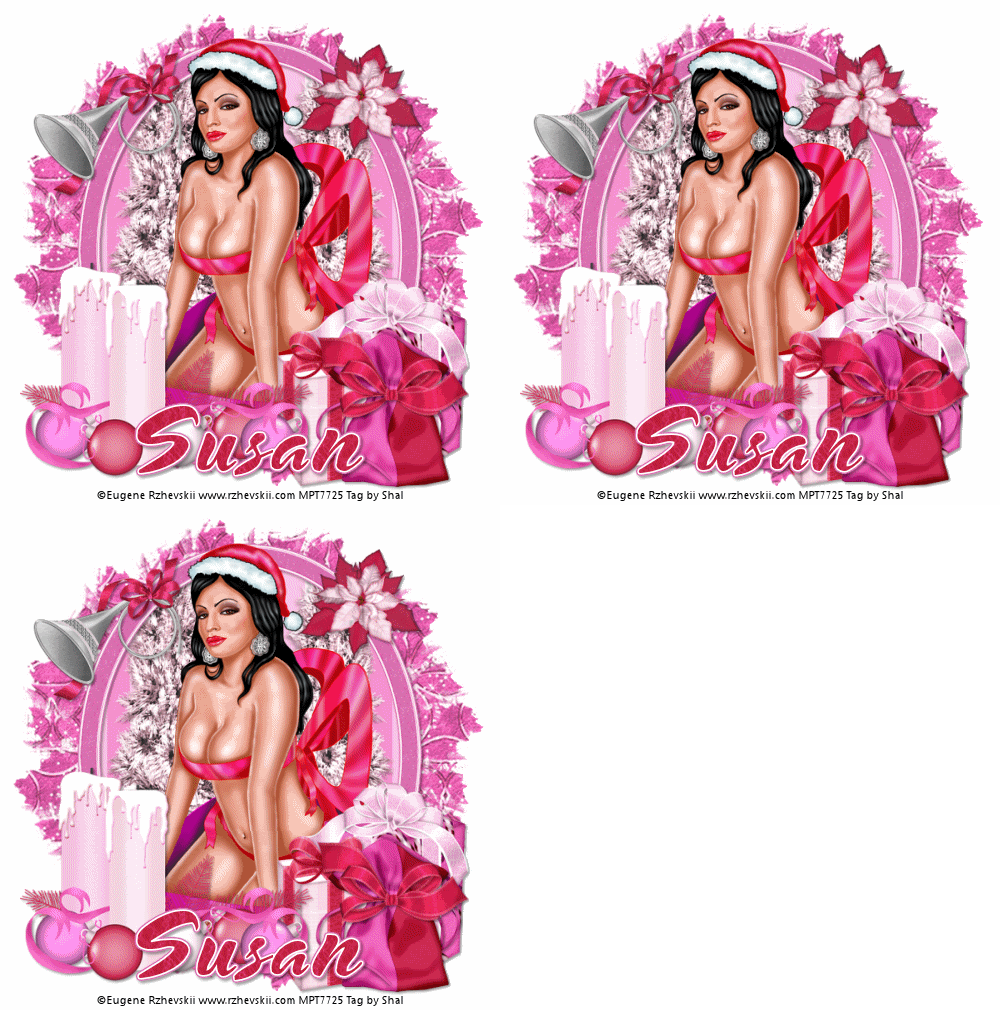
Pinkelcious Xmas Tut
9:40 AM | Posted by
Shal |
Edit Post
Edit Post
Feel free to use my tutorial as a guide and
have fun giving it your own spin.
This tutorial assumes you have a working knowledge of PSP.
Needed Supplies & Filters :
Tube of Choice .. I am using the work of Eugene Rzhevskii which you must have a license to use. Please do not use his work without purchasing through MPT here.
Scrap Kit of Choice .. I have used a gorgeous PTU kit from Puddicat called Joy’s Pinkelcious Xmas Dreams which be purchased here.
Mask of Choice .. I have used WSL_Mask112 which can be downloaded from weescotslass here.
Filters required ... Xenofex (Constellation) & Animation Shop
Font of Choice .. I have used Snowblind.
Let's get started !
New Image 600x600 and floodfill with white. Open your mask in PSP.
New raster layer, select all and paste into selection Paper 19. New mask layer from image, WSL_Mask112, invert mask data unchecked, and merge group. Resize 125%.
Duplicate twice and rename layers Mask 1, Mask 2 & Mask 3. On your first mask layer apply the following Xenofex/Constellation.
have fun giving it your own spin.
This tutorial assumes you have a working knowledge of PSP.
Needed Supplies & Filters :
Tube of Choice .. I am using the work of Eugene Rzhevskii which you must have a license to use. Please do not use his work without purchasing through MPT here.
Scrap Kit of Choice .. I have used a gorgeous PTU kit from Puddicat called Joy’s Pinkelcious Xmas Dreams which be purchased here.
Mask of Choice .. I have used WSL_Mask112 which can be downloaded from weescotslass here.
Filters required ... Xenofex (Constellation) & Animation Shop
Font of Choice .. I have used Snowblind.
Let's get started !
New Image 600x600 and floodfill with white. Open your mask in PSP.
New raster layer, select all and paste into selection Paper 19. New mask layer from image, WSL_Mask112, invert mask data unchecked, and merge group. Resize 125%.
Duplicate twice and rename layers Mask 1, Mask 2 & Mask 3. On your first mask layer apply the following Xenofex/Constellation.

Apply the same Constellation to your next mask layer and hit random once. Apply again to your last mask layer hitting random twice. If you decide not to animate your tag, then just skip the duplicate twice.
Copy and paste Frame 3 & resize 75%. Using your magic wand, select the middle of your frame. Selections & modify expand 3. Copy and paste Paper 14, selections invert, hit delete and do no deselect. Move this layer below your frame layer. Copy and paste Tree 1, resize 75% and drop shadow. I have used 2/2/40/4 throughout. Position on the left side, layer duplicate and mirror. Hit delete. Copy and paste your tube, hit delete. Select none.
Copy and paste your tube again, but this time above your frame layer. Erase the bottom portion of your tube that covers your frame.
I have added the following gradient glow and then drop shadow to the frame.

Copy and paste Candle 1, resize 75% & drop shadow. Position bottom left.
Copy and paste Present 2, resize 75% & drop shadow. Position bottom right. Copy and paste Present 4, resize 50% and drop shadow. Position next to your other present. Copy and paste Bag 2, resize 40% & drop shadow. Position with your presents. Copy and paste Bow 9, resize 30% & drop shadow. Position on your bag.
Copy and paste Trumpet 2, resize 40% & drop shadow. Position top left hand side of your frame.
Copy and paste Poinsettia 1, resize 30% & drop shadow. Position top right hand corner of your frame.
At this point if you need to, resize your tag. I have used 500x500. Add your copyright and name. I have used Snowblind 72 using paper 7 as my pattern. I then added the same gradient glow and drop shadow as before.
If you are choosing not to animate, then you can save your tag.
To animate, close off Mask Layer 2 & 3 (the lil eye icon in your layer palette), Edit/Copy Merged and paste as new animation in Animation Shop. Close off Mask Layer 1 and open Mask Layer 2, Edit/Copy Merged and paste after current frame in AS. Close off Mask Layer 2 and open Mask Layer 3, Edit/Copy Merged and paste after current frame in AS. Save as a gif.
I hope you have enjoyed my tutorial.
Pls feel free to experiment and use my tutorial as a guide.
Please feel free to send me your results.
I'd love to see what you came up with.
If you are choosing not to animate, then you can save your tag.
To animate, close off Mask Layer 2 & 3 (the lil eye icon in your layer palette), Edit/Copy Merged and paste as new animation in Animation Shop. Close off Mask Layer 1 and open Mask Layer 2, Edit/Copy Merged and paste after current frame in AS. Close off Mask Layer 2 and open Mask Layer 3, Edit/Copy Merged and paste after current frame in AS. Save as a gif.
I hope you have enjoyed my tutorial.
Pls feel free to experiment and use my tutorial as a guide.
Please feel free to send me your results.
I'd love to see what you came up with.
Subscribe to:
Posts (Atom)
Kits & Tuts





Blogs I Love