About Me
My hobbies are PSP.
I love helping my friends who are starting with PSP.
Any similarity or resemblance to any other tutorial is purely coincidental and unintentional. Pls do not recopy my tutorials anywhere. Many thanks Susan.


Credit
Blinkie created by Rabid Designz. She does some amazing work ! Thanks so much Melissa.

Blinkie created by my long time friend tweety here. Thanks so much my friend :)
My blog was designed By Alika's Scraps. Thanks so much. You did an amazing job !

Thursday, December 29, 2011
 The Journey of a Lifetime Extras
6:41 PM | Posted by
Shal |
 Edit Post
Edit Post

Tube of Choice .. I am using the work of Meg Baker which you must have a license to use. Please do not use her work without purchasing through PSP Tube Stop here.


 Labels:

Monday, December 26, 2011
Winter Wonderland Tut
10:01 PM | Posted by
Shal |
Edit Post
Edit Post
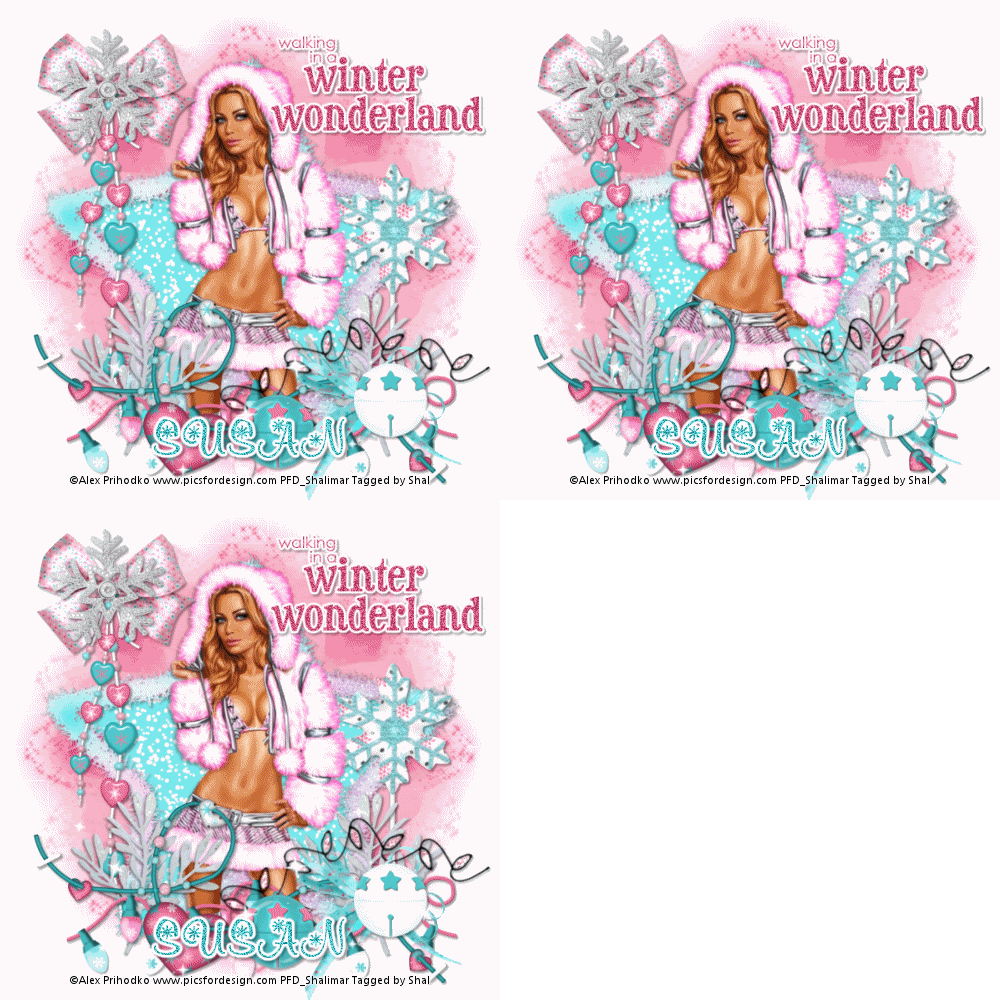
Feel free to use my tutorial as a guide and have fun giving it your own spin.
This tutorial assumes you have a working knowledge of PSP.
Needed Supplies & Filters :
Tube of Choice .. I am using the work of Alex Prihodko which you must have a license to use. Please do not use his work without purchasing through PFD here.
Scrap Kit of Choice .. I have used a gorgeous PTU kit from Angel's Designz called "Frost Berry" which be purchased here.
Mask of Choice .. I haved used WSL_Mask366 which can be downloaded here.
Word art of Choice .. I have used word art from Annie's Little Footprints which can be downloaded here.
Font of Choice .. KR Snowflake 2
Filters of Choice .. Vanderlee/Snowflakes
Let's get started !
New image 600x600 and floodfill with white. New raster layer, select all, paste into selection Paper 14. Select none. New mask layer from image, WSL_Mask366, invert transparency unchecked, and merge group. Resize 115%. Repeat using Paper 12 and rotate right 20.
Copy and paste Frame 3 & resize 90%. Using your magic wand, select the center portion of your frame, selections modify/expand 5, copy and paste Paper 11 below your frame layers, selections invert and hit delete. Selections invert and duplicate your background layer twice, renaming your layers Snow 1,2 & 3.
On your first snow layer apply the following Vanderlee/Snowflakes.
This tutorial assumes you have a working knowledge of PSP.
Needed Supplies & Filters :
Tube of Choice .. I am using the work of Alex Prihodko which you must have a license to use. Please do not use his work without purchasing through PFD here.
Scrap Kit of Choice .. I have used a gorgeous PTU kit from Angel's Designz called "Frost Berry" which be purchased here.
Mask of Choice .. I haved used WSL_Mask366 which can be downloaded here.
Word art of Choice .. I have used word art from Annie's Little Footprints which can be downloaded here.
Font of Choice .. KR Snowflake 2
Filters of Choice .. Vanderlee/Snowflakes
Let's get started !
New image 600x600 and floodfill with white. New raster layer, select all, paste into selection Paper 14. Select none. New mask layer from image, WSL_Mask366, invert transparency unchecked, and merge group. Resize 115%. Repeat using Paper 12 and rotate right 20.
Copy and paste Frame 3 & resize 90%. Using your magic wand, select the center portion of your frame, selections modify/expand 5, copy and paste Paper 11 below your frame layers, selections invert and hit delete. Selections invert and duplicate your background layer twice, renaming your layers Snow 1,2 & 3.
On your first snow layer apply the following Vanderlee/Snowflakes.

Apply the same settings to your next snow layer and randomize. Apply again to your last snow layer hitting and randomize again. Select none. If you decide not to animate your tag, then just skip the duplicate twice and snow steps.
Drop shadow your frame. I have used 2/2/40/4 throughout. Copy and paste Sucker, resize 65% & drop shadow. Position on the right hand side.
Copy and paste your tube, resize as necessary & drop shadow. Copy and paste Branch, resize 50% & drop shadow. Position bottom right hand corner. Layer duplicate & mirror.
Copy and paste Lights, resize 85% & drop shadow. Position along the bottom. Copy and paste Heart String & drop shadow. Position along the bottom as well.
Copy and paste Bow 1, resize 50% & drop shadow. Position bottom right hand corner. Copy and paste Bells, resize 75% & drop shadow. Position bottom right hand corner.
Copy and paste Bead String, resize 75% & drop shadow. Position on the left hand side. Copy and paste Bow 3, resize 50% & drop shadow. Position at the top of your Bead String. Repeat with Charm, resizing 40% & position on top of your bow.
Copy and paste Sparkles & position along the bottom.
Copy and paste Word Art, resize 30% & then 50%. Adjust color balance/manual color correction from black to #d1557d. Adjust/add remove noise/add noise/uniform monochrome checked/50%. Size 3 fat white gradient glow followed by drop shadow.
At this point if you need to, resize your tag. I have used 500x500. Add your copyright and name. I have used KR Snowflake, size 60, color #49bdc1 and added the same noise, gradient glow & drop shadow as with the word art.
If you are choosing not to animate, then you can save your tag.
To animate, close off Snow Layer 2 & 3 (the lil eye icon in your layer palette), Edit/Copy Merged and paste as new animation in Animation Shop. Close off Snow Layer 1 and open Snow Layer 2, Edit/Copy Merged and paste after current frame in AS. Close off Snow Layer 2 and open Snow Layer 3, Edit/Copy Merged and paste after current frame in AS.
In animation shop, select all, frame properties 25. Save as a gif.
Save and you are done.
I hope you have enjoyed my tutorial.
Pls feel free to experiment and use my tutorial as a guide.
Please feel free to send me your results.
I'd love to see what you came up with.
Cheers Tut
8:24 PM | Posted by
Shal |
Edit Post
Edit Post

Feel free to use my tutorial as a guide and have fun giving it your own spin.
This tutorial assumes you have a working knowledge of PSP.
Needed Supplies :
Tube of Choice .. I am using the work of Simona Candini which you must have a license to use. Please do not use her work without purchasing through SNC here.
Scrap Kit of Choice .. I have used a PTU Kit from Dark Moon's Dream called "Mitternachts Melody" which can be purchased here.
Mask of Choice .. I have used WSL_Mask8 by weescotslass which can be downloaded here.
Font of Choice .. Jayne Print
Let's get started
New image 600x600 and floodfill with white. New raster layer, select all, paste into selection Paper 10. Select none. New mask layer from image, WSL_Mask8, invert transparency unchecked, and merge group. Layer duplicate & merge down both mask layers.
Duplicate twice and rename your layers Mask 1,2 and 3. On your first Mask layer apply Dsb Flux/Bright Noise/50. On your 2nd layer, apply bright noise again, hitting mix twice. On your 3rd layer, apply again hitting mix 3 times. If you are deciding not to animate, skip this part of the tutorial.
Copy and paste Splatter, resize 65% & position top left hand corner. Layer duplicate, rotate right 90 and position lower right hand side.
Copy and paste Frame 4 & resize 85%. Using your magic wand, select the center portion of your frame, selections modify/expand 5, copy and paste Glitter below your frame layers, selections invert and hit delete. Copy and paste below your frame your tube & resize as necessary. Layer duplicate and drag this layer above your frame. On the tube layer below you frame, hit delete & select none. Select the tube layer above your frame and erase the bottom portion of the tube so it appears to be coming out of your frame. Drop shadow your frame. I have used 2/2/40/4 throughout.
Copy and paste Branch 2, resize 75%, mirror & drop shadow. Position on the right hand side of your frame.
Copy and paste Bow 4 & drop shadow. Position top right hand corner of your frame. Layer duplicate & mirror.
Copy and paste Bow 2, resize 75% & drop shadow. Position bottom centre of your frame. Copy and paste Deco 5, resize 75% & drop shadow. Position bottom right hand corner.
Copy and paste Branch 1, resize 85% & drop shadow. Position on the right hand side. Repeat with Ivy and position along the bottom.
Copy and paste Balloon, resize 85% & drop shadow. Position on the right hand side.
Copy and paste Feathers, drop shadow and position bottom left hand corner. Copy and paste Deco 4, resize 75% & drop shadow. Position next to your Feathers.
Copy and paste Ribbon 2 & drop shadow. Position towards the bottom. Layer duplicate & move up a bit.
Copy and paste Flowers 2, mirror & drop shadow. Position bottom left hand corner.
Copy and paste Bird Cage, resize 75% & drop shadow. Position bottom right hand corner. Repeat with Dove, resizing 50% & position at the base of your cage.
At this point if you need to, resize your tag. I have used 500x500. Add your copyright and name. I have used Jayne Print, size 48, color #8c1313. I then added the same bright noise effect as used before, followed by this gradient glow & then drop shadow.
This tutorial assumes you have a working knowledge of PSP.
Needed Supplies :
Tube of Choice .. I am using the work of Simona Candini which you must have a license to use. Please do not use her work without purchasing through SNC here.
Scrap Kit of Choice .. I have used a PTU Kit from Dark Moon's Dream called "Mitternachts Melody" which can be purchased here.
Mask of Choice .. I have used WSL_Mask8 by weescotslass which can be downloaded here.
Font of Choice .. Jayne Print
Let's get started
New image 600x600 and floodfill with white. New raster layer, select all, paste into selection Paper 10. Select none. New mask layer from image, WSL_Mask8, invert transparency unchecked, and merge group. Layer duplicate & merge down both mask layers.
Duplicate twice and rename your layers Mask 1,2 and 3. On your first Mask layer apply Dsb Flux/Bright Noise/50. On your 2nd layer, apply bright noise again, hitting mix twice. On your 3rd layer, apply again hitting mix 3 times. If you are deciding not to animate, skip this part of the tutorial.
Copy and paste Splatter, resize 65% & position top left hand corner. Layer duplicate, rotate right 90 and position lower right hand side.
Copy and paste Frame 4 & resize 85%. Using your magic wand, select the center portion of your frame, selections modify/expand 5, copy and paste Glitter below your frame layers, selections invert and hit delete. Copy and paste below your frame your tube & resize as necessary. Layer duplicate and drag this layer above your frame. On the tube layer below you frame, hit delete & select none. Select the tube layer above your frame and erase the bottom portion of the tube so it appears to be coming out of your frame. Drop shadow your frame. I have used 2/2/40/4 throughout.
Copy and paste Branch 2, resize 75%, mirror & drop shadow. Position on the right hand side of your frame.
Copy and paste Bow 4 & drop shadow. Position top right hand corner of your frame. Layer duplicate & mirror.
Copy and paste Bow 2, resize 75% & drop shadow. Position bottom centre of your frame. Copy and paste Deco 5, resize 75% & drop shadow. Position bottom right hand corner.
Copy and paste Branch 1, resize 85% & drop shadow. Position on the right hand side. Repeat with Ivy and position along the bottom.
Copy and paste Balloon, resize 85% & drop shadow. Position on the right hand side.
Copy and paste Feathers, drop shadow and position bottom left hand corner. Copy and paste Deco 4, resize 75% & drop shadow. Position next to your Feathers.
Copy and paste Ribbon 2 & drop shadow. Position towards the bottom. Layer duplicate & move up a bit.
Copy and paste Flowers 2, mirror & drop shadow. Position bottom left hand corner.
Copy and paste Bird Cage, resize 75% & drop shadow. Position bottom right hand corner. Repeat with Dove, resizing 50% & position at the base of your cage.
At this point if you need to, resize your tag. I have used 500x500. Add your copyright and name. I have used Jayne Print, size 48, color #8c1313. I then added the same bright noise effect as used before, followed by this gradient glow & then drop shadow.

If you are choosing not to animate, then you can save your tag.
To animate, close off Mask Layers 2 & 3 (the lil eye icon in your layer palette), Edit/Copy Merged and paste as new animation in Animation Shop. Close off Mask Layer 1 and open Mask Layer 2, Edit/Copy Merged and paste after current frame in AS. Close off Mask Layer 2 and open Mask Layer 3, Edit/Copy Merged and paste after current frame in AS.
Save as a gif.
I hope you have enjoyed my tutorial.
Pls feel free to experiment and use my tutorial as a guide.
Please feel free to send me your results.
I'd love to see what you came up with.
Santa's CU Goodie Bag at Twilight Scraps
6:19 PM | Posted by
Shal |
Edit Post
Edit Post

Santa's CU Goodie Bag at Twilight Scraps
This 'Santa's CU Goodie Bag was put together by several of our very talented designers. This CU Grab Bag is filled with items from Overlays, Templates, PSP Scripts, Elements packs & MORE. There is a total of 37 CU Items inside the CU Goodie Bag. Free gift with 10.00$ purchase.
Thank you for supporting Twilight Scraps!!
Thank you for supporting Twilight Scraps!!

Jingle Jangle Collaboration at Twilight Scraps
6:05 PM | Posted by
Shal |
Edit Post
Edit Post

Jingle Jangle Collaboration at Twilight Scraps
The Jingle Jangle Collaboration was put together by several of our very talented designers. There is a total of 19 products inside this collab, Please be sure to read the terms by each designer. Free gift with 10.00$ purchase.
Thank you for supporting Twilight Scraps!!
Thank you for supporting Twilight Scraps!!

Happy Emo New Year Tagger Size Kit
5:55 PM | Posted by
Shal |
Edit Post
Edit Post

Happy Emo New Year Tagger Size Kit
This kit contains 24 papers (800x800 in size) & 81 elements. Elements include balloons, bows, buttons, emo dolls, fireworks, frames, hats, noise makers, ribbons, word art as well as apiano, champagne bottle & glasses.
Time to celebrate and ring in the new year !
Time to celebrate and ring in the new year !
Tuesday, December 20, 2011
Under the Mistletoe Tut
8:38 PM | Posted by
Shal |
Edit Post
Edit Post

Feel free to use my tutorial as a guide and have fun giving it your own spin.
This tutorial assumes you have a working knowledge of PSP.
Needed Supplies :
Tube of Choice .. I am using the work of Alex Prihodko which you must have a license to use. Please do not use this work without purchasing through PFD here.
Scrap Kit of Choice .. I have used a PTU Kit from Eclipse Creations called "Purple Golden Xmas" which can be purchased here.
Mask of Choice .. I have used WSL_Mask78 by weescotslass which can be downloaded here.
Word art of Choice .. I have used word art by Little Footprints which can be downloaded here.
Font of Choice .. Santa's Sleigh
Let's get started
New image 600x600 and floodfill with white. New raster layer, select all, paste into selection Paper 1. Select none. New mask layer from image, WSL_Mask78, invert transparency unchecked, and merge group. Layer duplicate & merge down both mask layers.
New raster layer, select all, paste into selection Paper 2. Select none. New mask layer from image, WSL_Mask78, invert transparency unchecked, and merge group. Rotate right 10.
Copy and paste Splat 2, resize 40%, adjust/add remove noise/add noise/random monochrome checked/50% & drop shadow. I have used 2/2/40/4 throughout. Position top right hand corner. Layer duplicate & move bottom left hand corner.
Copy and paste Frame 2 & resize 75%. Using your magic wand, select the center portion of your frame, selections modify/expand 5, copy and paste Paper 6 below your frame layers, selections invert and hit delete. Drop shadow your frame.
Copy and paste Ladder, resize 75%, rotate right 45 & drop shadow. Position on the right hand side of your frame. Copy and paste Nussknacker 1, resize 65% & drop shadow. Position bottom right hand corner. Repeat with Tree Cupcake 2 and position next to your first element.
Copy and paste Garland 2, resize 75%, rotate right 90 & drop shadow. Position on the left hand side of your frame. Repeat with Garland 1. Copy and paste Decoration, resize 65% & drop shadow. Position top left hand side of your frame.
Copy and paste Lollipop 1, resize 50% & drop shadow. Positon bottom left hand corner. Repeat with Lollipop 6, resizing 45% and position next to your other Lollipop.
Copy and paste your tube, resize as necessary & drop shadow. Copy and paste Decoration 2 & drop shadow. Position along the bottom.
Copy and paste Lights, resize 85% & drop shadow. Position along the bottom as well.
Copy and paste your selected word art, resize as necessary (40% and then 35% for mine). I then added the following gradient glow. Select all/float/defloat/modify/contract 6/invert and then add the same noise effect as used before. Select none and drop shadow. Position top right hand corner.
This tutorial assumes you have a working knowledge of PSP.
Needed Supplies :
Tube of Choice .. I am using the work of Alex Prihodko which you must have a license to use. Please do not use this work without purchasing through PFD here.
Scrap Kit of Choice .. I have used a PTU Kit from Eclipse Creations called "Purple Golden Xmas" which can be purchased here.
Mask of Choice .. I have used WSL_Mask78 by weescotslass which can be downloaded here.
Word art of Choice .. I have used word art by Little Footprints which can be downloaded here.
Font of Choice .. Santa's Sleigh
Let's get started
New image 600x600 and floodfill with white. New raster layer, select all, paste into selection Paper 1. Select none. New mask layer from image, WSL_Mask78, invert transparency unchecked, and merge group. Layer duplicate & merge down both mask layers.
New raster layer, select all, paste into selection Paper 2. Select none. New mask layer from image, WSL_Mask78, invert transparency unchecked, and merge group. Rotate right 10.
Copy and paste Splat 2, resize 40%, adjust/add remove noise/add noise/random monochrome checked/50% & drop shadow. I have used 2/2/40/4 throughout. Position top right hand corner. Layer duplicate & move bottom left hand corner.
Copy and paste Frame 2 & resize 75%. Using your magic wand, select the center portion of your frame, selections modify/expand 5, copy and paste Paper 6 below your frame layers, selections invert and hit delete. Drop shadow your frame.
Copy and paste Ladder, resize 75%, rotate right 45 & drop shadow. Position on the right hand side of your frame. Copy and paste Nussknacker 1, resize 65% & drop shadow. Position bottom right hand corner. Repeat with Tree Cupcake 2 and position next to your first element.
Copy and paste Garland 2, resize 75%, rotate right 90 & drop shadow. Position on the left hand side of your frame. Repeat with Garland 1. Copy and paste Decoration, resize 65% & drop shadow. Position top left hand side of your frame.
Copy and paste Lollipop 1, resize 50% & drop shadow. Positon bottom left hand corner. Repeat with Lollipop 6, resizing 45% and position next to your other Lollipop.
Copy and paste your tube, resize as necessary & drop shadow. Copy and paste Decoration 2 & drop shadow. Position along the bottom.
Copy and paste Lights, resize 85% & drop shadow. Position along the bottom as well.
Copy and paste your selected word art, resize as necessary (40% and then 35% for mine). I then added the following gradient glow. Select all/float/defloat/modify/contract 6/invert and then add the same noise effect as used before. Select none and drop shadow. Position top right hand corner.

X out white background, merge visible. Open white background, resize to your liking (I have used 500x500).
Add copyright and name on your tag. I have used Santa's Sleigh, Size 60, color black, then added the same effects I did on the word art with the gradient glow, noise and drop shadow.
Save and you are done.
I hope you have enjoyed my tutorial.
Pls feel free to experiment and use my tutorial as a guide.
Subscribe to:
Posts (Atom)
Kits & Tuts





Blogs I Love