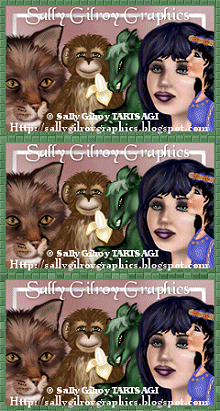
About Me
My hobbies are PSP.
I love helping my friends who are starting with PSP.
Any similarity or resemblance to any other tutorial is purely coincidental and unintentional. Pls do not recopy my tutorials anywhere. Many thanks Susan.


Credit
Blinkie created by Rabid Designz. She does some amazing work ! Thanks so much Melissa.

Blinkie created by my long time friend tweety here. Thanks so much my friend :)
My blog was designed By Alika's Scraps. Thanks so much. You did an amazing job !

Wednesday, January 6, 2010
 Rac Be My Valentine Tut
9:14 AM | Posted by
Shal |
 Edit Post
Edit Post

Feel free to use my tutorial as a guide and have fun giving it your own spin.
This tutorial assumes you have a working knowledge of PSP.
Needed Supplies & Filters :
Tube of Choice .. I am using the work of Ismael Rac which you must have a license to use. I am licensed through Artistic Minds Inc. but they are now closed. You can now find Ismael's artwork licensed through his own store. Pls do not use his work without purchasing through here.
Scrap Kit of Choice .. I have used a gorgeous PTU kit from Fi's Fault called Pink & Black which can be purchased at Artistic Minds Inc. here.
Word Art of Choice .. I have used a great word art from Lori, which is available on her blog here.
Mask of Choice .. I have used WSL_Mask84 which can be downloaded from weescotslass here.
Mask of Choice .. I have used WSL_Mask84 which can be downloaded from weescotslass here.
Font of Choice .. I have used Gwendolyn Bold.
Let's get started !
New Image 600x600 and floodfill with white. Open your mask in PSP.
New raster layer, select all and paste into selection Paper 11. New mask layer from image, WSL_Mask84, invert mask data unchecked, and merge group.
Let's get started !
New Image 600x600 and floodfill with white. Open your mask in PSP.
New raster layer, select all and paste into selection Paper 11. New mask layer from image, WSL_Mask84, invert mask data unchecked, and merge group.
Copy and paste Frame 02 & resize 85%. Using your magic wand, select the center portion of your frame, selections modify/expand 3. Copy and paste Paper 8 below your frame layer, selections invert and hit delete. Do not deselect.
Copy and paste your tube closeup and lower opacity to 70%. Hit delete. Select none. To add a lil sparkle, I have added the following constellation setting to my tube.

Duplicate this tube layer 8 times and rename your layers 1 through 9. We will need change the opacity on each layer so that we can achieve the fading in and out of the tube layer. On layer 1 reduce opacity to 0, layer 2 to 25, layer 3 to 50, layer 4 to 75, layer 5 keep 100, layer 6 to 75, layer 7 to 50, layer 8 to 25 and layer 9 to 0. If you choose not to animate your tag, then skip the duplicate portion.
Drop shadow your frame. I have used 2/2/40/4 throughout.
Copy and paste Candy 01, rotate left 20 and drop shadow. Position bottom right hand corner of your frame. Copy and paste Flower 5 & 6, resize 75% & drop shadow and position with your Candy. Copy and paste Candy 04, rotate right 20 & drop shadow. Position to the right of your candy/flower arrangement. Copy and paste Bow 3, resize 65% & drop shadow. Position in the middle of your arrangement. Copy and paste Flower 1, resize 75% & drop shadow. Position in the middle of your bow.
Copy and paste Bow 7, resize 75% & drop shadow. Position top center of your frame.
Copy and paste just above your frame layer, Beaded wire 1, resize 75% & drop shadow. Position bottom of your frame.
Copy and paste Word art. I have added a size 3 fat white gradient glow and then drop shadow.
At this point if you need to, resize your tag. I have used 500x500. Add your copyright and name. I have used Gwendolyn Bold color #d2448d size 72 with the same gradient glow and drop shadow as the word art.
If you are choosing not to animate, then you can save your tag.
To animate, close off Tube layers 2 through 9 (the lil eye icon in your layer palette), Edit/Copy Merged and paste as new animation in Animation Shop. Close off Tube Layer 1 and open Tube Layer 2, Edit/Copy Merged and paste after current frame in AS. Close off Tube Layer 2 and open Tube Layer 3, Edit/Copy Merged and paste after current frame in AS. Continue in this manner until you have added all 9 to AS.
To animate, close off Tube layers 2 through 9 (the lil eye icon in your layer palette), Edit/Copy Merged and paste as new animation in Animation Shop. Close off Tube Layer 1 and open Tube Layer 2, Edit/Copy Merged and paste after current frame in AS. Close off Tube Layer 2 and open Tube Layer 3, Edit/Copy Merged and paste after current frame in AS. Continue in this manner until you have added all 9 to AS.
You can now modify your frame properties to achieve the speed of animation you like. I have used the following. In AS, edit/select all, animation/frame properties and change to 35. Edit/select none. Then select only Frame 5 by clicking once on it. You will see a blue frame around it to know you have the right one. Animation/frame properties and change to 75.
Save as a gif.
I hope you have enjoyed my tutorial.
Pls feel free to experiment and use my tutorial as a guide.
Please feel free to send me your results.
I'd love to see what you came up with.
I hope you have enjoyed my tutorial.
Pls feel free to experiment and use my tutorial as a guide.
Please feel free to send me your results.
I'd love to see what you came up with.
 Labels:

Tuesday, January 5, 2010
Gorjuss Winter Wonders Tut
12:51 PM | Posted by
Shal |
Edit Post
Edit Post
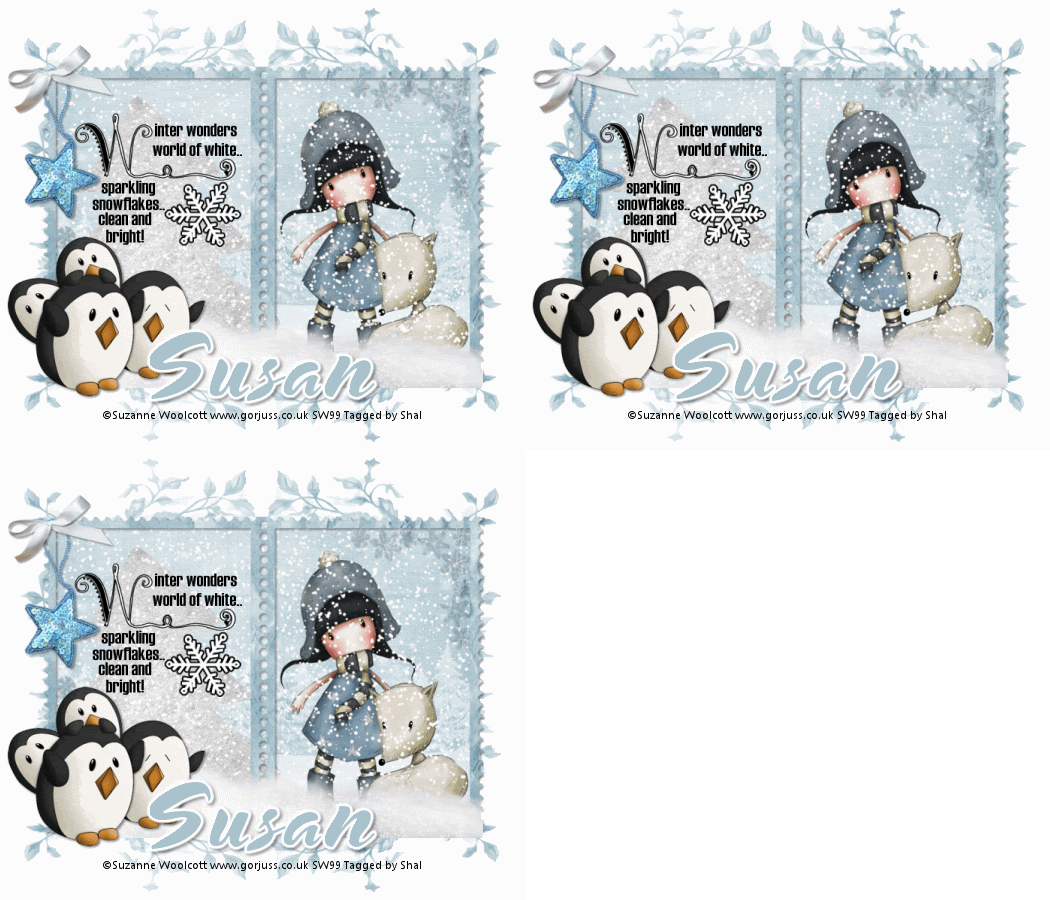
Feel free to use my tutorial as a guide and
have fun giving it your own spin.
This tutorial assumes you have a working knowledge of PSP.
Needed Supplies & Filters :
Tube of Choice .. I am using the work of Suzanne Woolcott which you must have a license to use. Please do not use her work without purchasing through her site here.
Scrap Kit of Choice .. I have used a gorgeous PTU kit from Cora called Chilly & Willy which be purchased here.
have fun giving it your own spin.
This tutorial assumes you have a working knowledge of PSP.
Needed Supplies & Filters :
Tube of Choice .. I am using the work of Suzanne Woolcott which you must have a license to use. Please do not use her work without purchasing through her site here.
Scrap Kit of Choice .. I have used a gorgeous PTU kit from Cora called Chilly & Willy which be purchased here.
Word Art of Choice .. I have used a great word art from Lori, which is available on her blog here.
Mask of Choice .. I have used Vix's vix_Mask139 which can be downloaded from her blog here.
Font of Choice .. I am using Snowblind.
Filters of Choice .. Vanderlee/Snowflakes
Let's get started !
Open your mask in PSP. New image 600x600 and floofill with white. New raster layer, select all, copy and paste into selection Paper 5. New mask layer from image, Vix_Mask139, invert mask data unchecked, and merge group. Layer duplicate and flip.
Copy and paste Frame 01 & resize 90%. Using your selection tool, select an area similar to this.

Copy and paste Paper 7 below your frame layer, selections invert and hit delete. Select none.
Copy and paste your tube below frame layer in right side window. Resize if necessary. Copy and paste Tree on the left side, resize 85%. Merge down both tube layers and the background layer. Select all, float/defloat.
Layer duplicate twice and rename your layers Snow 1-2-3. Select all/float/defloat. On your first snow layer apply the following Vanderlee/Snowflakes.

Apply the same settings to your next snow layer and randomize. Apply again to your last snow layer hitting and randomize again. Select none. If you decide not to animate your tag, then just skip the duplicate twice and snow steps.
Drop shadow your frame layer. I have used 2/2/40/4 throughout.
Copy and paste Snow, resize 75% & mirror. Position along the bottom of your frame layer & drop shadow.
Copy and paste Penguin 01, resize 75% & drop shadow. Position bottom left hand corner of your frame.
Copy and paste Snow, resize 75% & mirror. Position along the bottom of your frame layer & drop shadow.
Copy and paste Penguin 01, resize 75% & drop shadow. Position bottom left hand corner of your frame.
Copy and paste Ornament 2, resize 35% & drop shadow. Position top left hand corner of your frame. Copy and paste Ribbon 1, resize 35% & drop shadow. Position holding ur ornament.
Copy and paste your selected word art in the left hand side window. Resize so it fits nicely.
At this point if you need to, resize your tag. I have used 525x450. Add your copyright and name. I have used Snowblind size 72 color #6f899a with a white gradient glow size 3 fat and then drop shadow.
If you are choosing not to animate, then you can save your tag.
To animate, close off Snow Layer 2 & 3 (the lil eye icon in your layer palette), Edit/Copy Merged and paste as new animation in Animation Shop. Close off Snow Layer 1 and open Snow Layer 2, Edit/Copy Merged and paste after current frame in AS. Close off Snow Layer 2 and open Snow Layer 3, Edit/Copy Merged and paste after current frame in AS.
In animation shop, select all, frame properties 25. Save as a gif.
Save and you are done.
I hope you have enjoyed my tutorial.
Pls feel free to experiment and use my tutorial as a guide.
Please feel free to send me your results.
I'd love to see what you came up with.
At this point if you need to, resize your tag. I have used 525x450. Add your copyright and name. I have used Snowblind size 72 color #6f899a with a white gradient glow size 3 fat and then drop shadow.
If you are choosing not to animate, then you can save your tag.
To animate, close off Snow Layer 2 & 3 (the lil eye icon in your layer palette), Edit/Copy Merged and paste as new animation in Animation Shop. Close off Snow Layer 1 and open Snow Layer 2, Edit/Copy Merged and paste after current frame in AS. Close off Snow Layer 2 and open Snow Layer 3, Edit/Copy Merged and paste after current frame in AS.
In animation shop, select all, frame properties 25. Save as a gif.
Save and you are done.
I hope you have enjoyed my tutorial.
Pls feel free to experiment and use my tutorial as a guide.
Please feel free to send me your results.
I'd love to see what you came up with.
New tutorial site - Tut Stop
9:39 AM | Posted by
Shal |
Edit Post
Edit Post
Have you ever missed the ole Tutorial Hunter site ... well now there's a new place where you can go look at all sorts of tutorials ! It's called Tut Stop and you'll be able to check out some great tutorials .. all neatly organized by theme and by artist ! Take some time and drop on by .. let them know that Shal sent you !

Make sure and check their grand opening contest !!!
Elias Winter Fun Tut
9:17 AM | Posted by
Shal |
Edit Post
Edit Post

Feel free to use my tutorial as a guide and have fun giving it your own spin.
This tutorial assumes you have a working knowledge of PSP.
Needed Supplies & Filters :
Tube of Choice .. I am using the work of Elias Chatzoudis which you must have a license to use. Please do not use his work without purchasing through MPT here.
Scrap Kit of Choice .. I have used a gorgeous PTU kit from BitsnBobs called Winter Dreams which can be purchased here.
Mask of Choice .. I have used WSL_Mask353 which can be downloaded from weescotslass here.
Word Art of Choice .. I have used a great word art from Lori, which is available on her blog here.
Font of Choice .. I have used BD Cartoon Shout.
Let's get started !
New Image 600x600 and floodfill with white. Open your mask in PSP.
New raster layer, select all and paste into selection Paper 10. New mask layer from image, WSL_Mask353, invert mask data unchecked, and merge group. Resize 105%.
Font of Choice .. I have used BD Cartoon Shout.
Let's get started !
New Image 600x600 and floodfill with white. Open your mask in PSP.
New raster layer, select all and paste into selection Paper 10. New mask layer from image, WSL_Mask353, invert mask data unchecked, and merge group. Resize 105%.
Copy and paste Frame 5 & resize 90%. Using your magic wand, select the center portion of your frame, selections modify/expand 8. Copy and paste Paper 9 below your frame layer, resize 75%, selections invert and hit delete. Do not deselect.
Copy and paste your tube below your frame layer, selections invert and hit delete. Select none. Copy and paste your tube again but this time above your frame layers. Erase the bottom portion of your tube so it appears she is coming out of the frames. Drop shadow your frame. I have used 2/2/40/4 throughout.
Copy and paste Bow 6 and drop shadow. Position top right hand corner of your frame. Copy and paste Element 17, resize 50% and drop shadow. Position dangling from the bow. Copy and paste Element 24, resize 65% and drop shadow. Position above the bow.
Copy and paste Element 30 just above your mask layer, resize 75% and position top left hand corner. Layer duplicate and mirror.
Copy and paste Frame 3 just above the snowflake layers, resize 110% & drop shadow.
Copy and paste Element 6 below your frame/wreath layer, drop shadow and position on the left side. Layer duplicate and mirror. Copy and paste Element 5 (also below your frame layer), drop shadow and position on the right side. Layer duplicate and mirror.
Copy and paste Element 44, resize 75% & drop shadow. Position on top of the star from the frame/wreath.
Copy and paste Element 39, resize 50%, image rotate right 20 and drop shadow. Position to the right of your bow. Copy and paste Element 40, resize 50%, image mirror, rotate left 20 and drop shadow. Position a lil higher on the right hand side.
Copy and paste your chosen Word art. Position top left hand corner. I have added a white gradient glow size 3 fat as well as drop shadow.
X out white background, merge visible.
Open white background, resize to your liking (I used 500x500).
Add copyright & Add your name. I used BD Cartoon Shout size 36 color white and added the following gradient glow and then drop shadow.
Open white background, resize to your liking (I used 500x500).
Add copyright & Add your name. I used BD Cartoon Shout size 36 color white and added the following gradient glow and then drop shadow.

Save and you are done.
I hope you have enjoyed my tutorial.
Please feel free to send me your results.
I'd love to see what you came up with.
Thursday, December 31, 2009
Tut using my "Happy 2010" Kit
5:10 PM | Posted by
Shal |
Edit Post
Edit Post

My dear friend Cheryl wrote this gorgeous tut using my "Happy 2010" kit. You can find the tut on her blog here.
Thanks so much Cheryl .. stunning !
Wednesday, December 23, 2009
Celebrating New Year Tut
10:00 PM | Posted by
Shal |
Edit Post
Edit Post
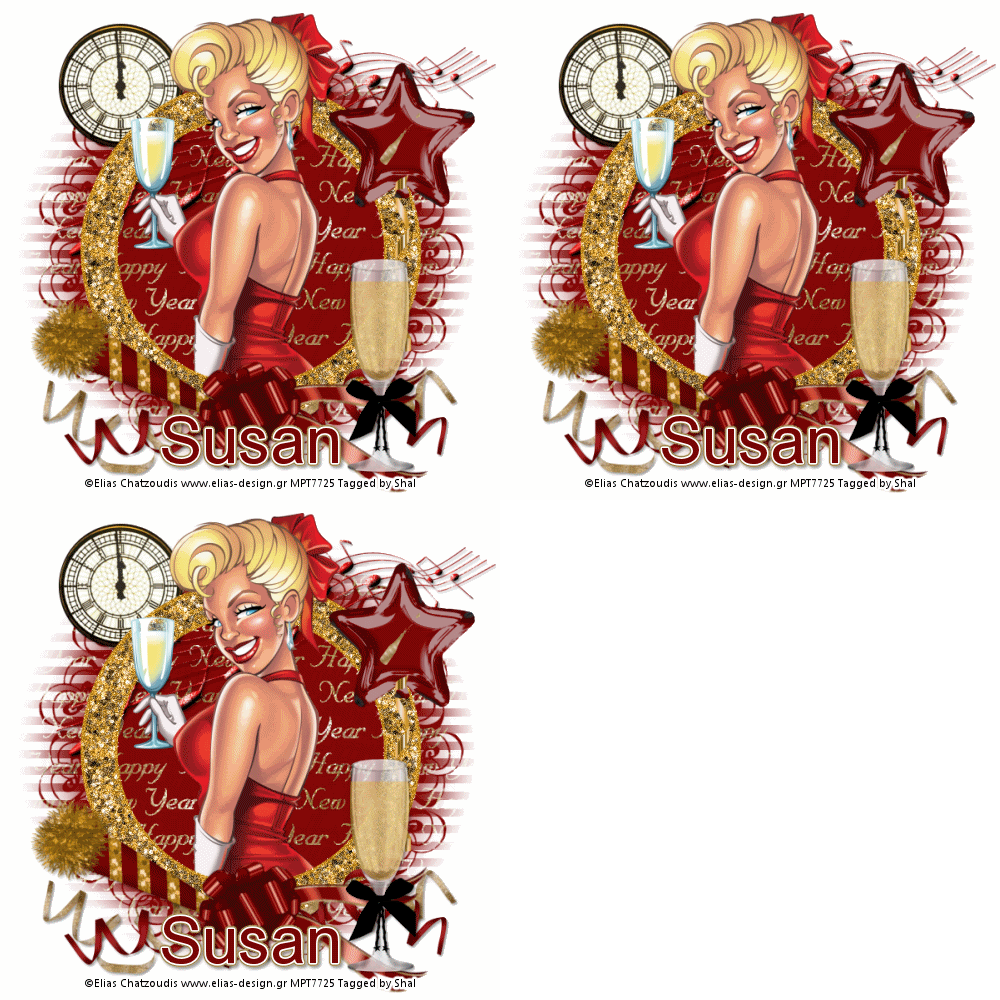
Feel free to use my tutorial as a guide and have fun giving it your own spin.
This tutorial assumes you have a working knowledge of PSP.
Needed Supplies & Filters :
Tube of Choice .. I am using the work of Elias Chatzoudis which you must have a license to use. Please do not use his work without purchasing through MPT here.
Scrap Kit of Choice .. I have used a gorgeous PTU kit from Digicats called Celebration which be purchased here.
Mask of Choice .. I have used WSL_Mask353 which can be downloaded from weescotslass here.
Font of Choice .. I have used Levenim MT.
Let's get started !
New Image 600x600 and floodfill with white. Open your mask in PSP.
New raster layer, select all and paste into selection Paper 20. New mask layer from image, WSL_Mask353, invert mask data unchecked, and merge group.
Copy and paste Round frame 5 & resize 90%. Duplicate twice and rename your layers frame 1, frame 2 & frame 3. On your first frame layer apply DSB Flux/Bright Noise 35%. On your 2nd frame layer, apply bright noise again, hitting mix twice. On your 3rd frame layer, apply again hitting mix 3 times. If you decide not to animate your tag, then just skip this part of the tutorial.
Using your magic wand, select the center portion of your frame, selections modify/expand 3. Copy and paste your tube below your frame layers, selections invert and hit delete. Select none. Copy and paste your tube again but this above your frame layers. Erase the bottom portion of your tube so it appears she is coming out of the frames.
Copy and paste Streamer 5c, resize 65%, rotate right 90 & drop shadow. I have used 2/2/40/4 throughout. Position bottom of your frame. Copy and paste Streamer 2b, rotate left 90 & drop shadow. Position as well bottom of your frame.
Copy and paste Streamer 5c, resize 65%, rotate right 90 & drop shadow. I have used 2/2/40/4 throughout. Position bottom of your frame. Copy and paste Streamer 2b, rotate left 90 & drop shadow. Position as well bottom of your frame.
Copy and paste Music element 02, resize 65% & drop shadow. Position just above your mask layer top right hand side.
Copy and paste Horn 2b, resize 50%, mirror, rotate right 25 and drop shadow. Position bottom left.
Copy and paste Bow 2, resize 50%, rotate left 90 and drop shadow. Position center bottom of your frame.
Copy and paste Glass 01, resize 35% & drop shadow. Position bottom right hand corner.
Copy and paste Clock, resize 50% & drop shadow. Position just above your mask layer, top left hand corner.
Copy and paste Balloon 5, resize 50% & drop shadow. Position right hand side.
At this point if you need to, resize your tag. I have used 500x500. Add your copyright and name. I have used Levenim MT 48 #7a0301 with the following gradient glow and then drop shadow.

If you are choosing not to animate, then you can save your tag.
To animate, close off Frame Layer 2 & 3 (the lil eye icon in your layer palette), Edit/Copy Merged and paste as new animation in Animation Shop. Close off Frame Layer 1 and open Frame Layer 2, Edit/Copy Merged and paste after current frame in AS. Close off Frame Layer 2 and open Frame Layer 3, Edit/Copy Merged and paste after current frame in AS. Save as a gif.
To animate, close off Frame Layer 2 & 3 (the lil eye icon in your layer palette), Edit/Copy Merged and paste as new animation in Animation Shop. Close off Frame Layer 1 and open Frame Layer 2, Edit/Copy Merged and paste after current frame in AS. Close off Frame Layer 2 and open Frame Layer 3, Edit/Copy Merged and paste after current frame in AS. Save as a gif.
I hope you have enjoyed my tutorial.
Please feel free to send me your results.
I'd love to see what you came up with.
Please feel free to send me your results.
I'd love to see what you came up with.
Party Girl 2010 Tut
6:27 PM | Posted by
Shal |
Edit Post
Edit Post

Feel free to use my tutorial as a guide and have fun giving it your own spin.
This tutorial assumes you have a working knowledge of PSP.
Needed Supplies & Filters :
Tube of Choice .. I am using the work of Keith Garvey which you must have a license to use. Please do not use his work without purchasing through MPT here.
Scrap Kit of Choice .. I have used a gorgeous PTU kit from Digicats called Party Girl which be purchased here.
Mask of Choice .. I have used WSL_Mask84 which can be downloaded from weescotslass here.
Font of Choice .. I have used Levenim MT.
Let's get started !
New Image 600x600 and floodfill with white. Open your mask in PSP.
New raster layer, select all and paste into selection Paper 17. New mask layer from image, WSL_Mask84, invert mask data unchecked, and merge group.
Copy and paste Music 3, resize 95% & drop shadow. I have used 2/2/40/4 througout.
Copy and paste Frame 10, resize 40% and rotate left 10. Move up and to the left. Layer duplicate, mirror and move down towards the right. See my image for placement.
Using your free hand selection tool, select an area the edge of your frame. If you prefer to leave the stars transparent, then use your magic wand and select the middle area of your frames and expand by 2.
For the top frame, copy and paste paper 18, selections invert & hit delete. Do not deselect. Copy and paste tube close up & hit delete. I have changed the blend mode to luminance legacy for my tube layer. Select none.
For the bottom frame, select again as you did for the first frame, copy and paste paper 23, selections invert & hit delete. Do not deselect. Copy and paste tube close up & hit delete. Select none. Drop shadow both frames.
Copy and paste full size tube, drop shadow and position left hand side.
Copy and paste Balloon 3, resize 50% and drop shadow. Position top right hand side. Repeat with Balloon 5 and position next to your first balloon.
Copy and paste Champagne bottle 5, resize 40% & drop shadow. Position bottom right hand corner. Copy and paste Champagne glass 5, resize 50% & drop shadow. Position next to you bottle.
Copy and paste Eye mask 3, resize 50%, rotate left 25 & drop shadow. Position where your 2 frames cross.
Copy and paste Noisemaker 1, resize 50% & drop shadow. Position bottom centre.
X out white background, merge visible.
Open white background, resize to your liking (I used 500x500).
Add copyright & add your name. I used Levenim MT size 48 #345e5e and added the following gradient glow and then drop shadow.

Save and you are done.
I hope you have enjoyed my tutorial.Please feel free to send me your results.
I'd love to see what you came up with.
Subscribe to:
Posts (Atom)
Kits & Tuts





Blogs I Love