About Me
My hobbies are PSP.
I love helping my friends who are starting with PSP.
Any similarity or resemblance to any other tutorial is purely coincidental and unintentional. Pls do not recopy my tutorials anywhere. Many thanks Susan.


Credit
Blinkie created by Rabid Designz. She does some amazing work ! Thanks so much Melissa.

Blinkie created by my long time friend tweety here. Thanks so much my friend :)
My blog was designed By Alika's Scraps. Thanks so much. You did an amazing job !

Saturday, November 19, 2011
 Tags Using My "Christmas Cheer" Tagger Size Kit
5:45 PM | Posted by
Shal |
 Edit Post
Edit Post


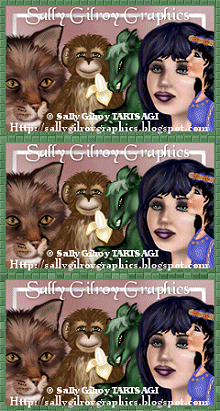
My dear friend Sally Gilroy has created these gorgeous tags using my "Christmas Cheer" Tagger Size Kit ! The tags feature her amazing artwork. If you haven't done so already, take a few minutes to visit Sally's site as well as her store at SNC where you can pick up her art.
Thanks so much Sally .. you've done an awesome job .. thanks so much for using my kit with your amazing art.
 Labels:

Tutorial using my "Be A Fighter" FTU Kit
5:37 PM | Posted by
Shal |
Edit Post
Edit Post

My dearest friend tweety has wrote this gorgeous tutorial for me,
this time using my "Be A Fighter" FTU kit !
She did such an amazing job as always
She did such an amazing job as always
Thank you so much my dear friend !
Tutorial can be found here.
Tutorial can be found here.
Thursday, November 17, 2011
Forever Thankful Tut
9:23 PM | Posted by
Shal |
Edit Post
Edit Post
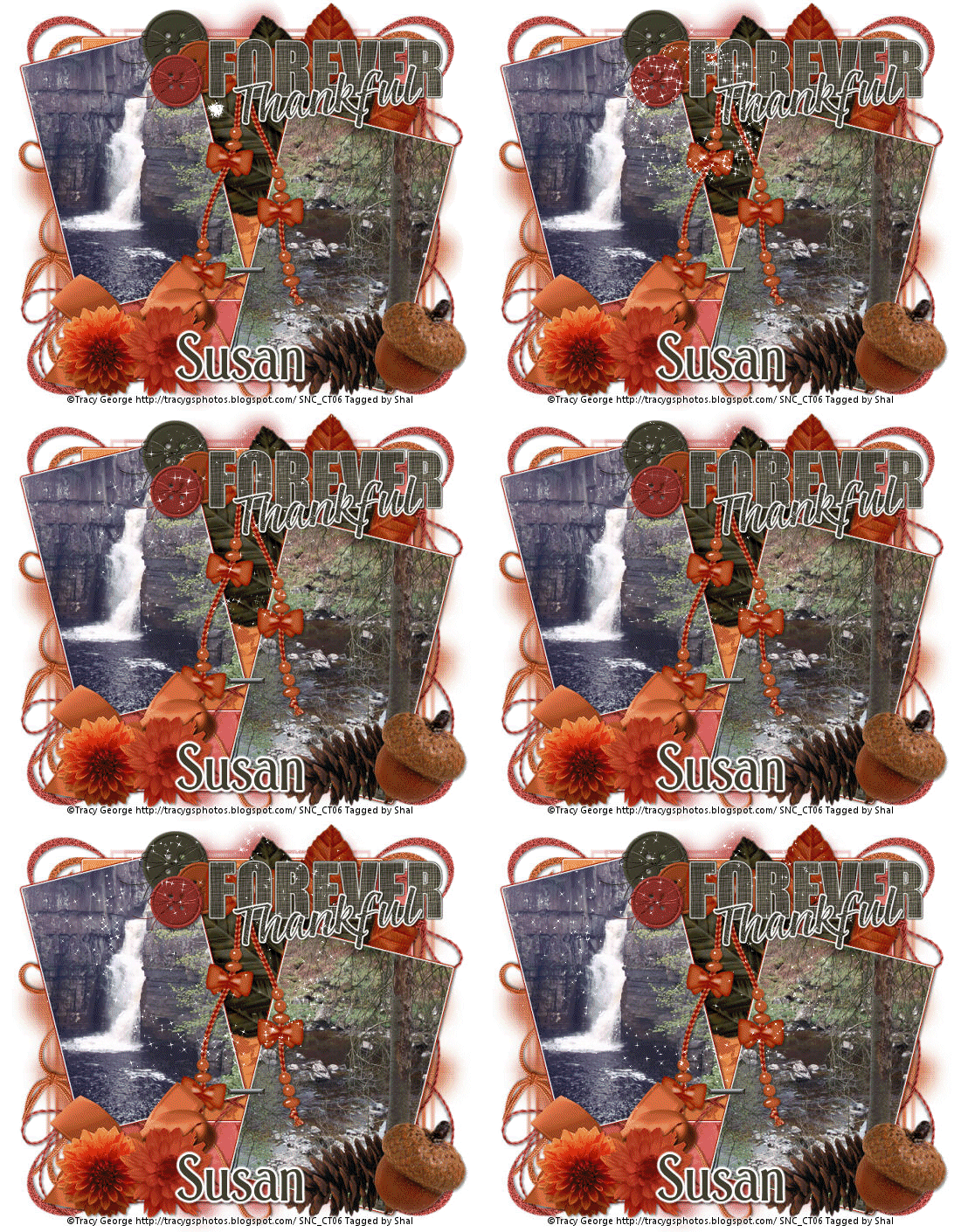
Feel free to use my tutorial as a guide and have fun giving it your own spin.
This tutorial assumes you have a working knowledge of PSP.
Needed Supplies :
Photography of Choice .. I am using the work of Tracy George which you must have a license to use. Please do not use this work without purchasing through SNC here.
Scrap Kit of Choice .. I have used a my PTU Kit called "Forever Thankful" which can be purchased here.
Mask of Choice .. I have used WSL_Mask187 which can be downloaded here.
Template of Choice .. I have used a Template #64 by Ali which can be downloaded here.
Animation of Choice .. I have used novasparks by Missy which can be downloaded here.
Font of Choice .. Holmes
Let's get started
Open your template in PSP & delete credits layer. Image/Canvas Size/685x585. New raster layer, arrange/send to bottom & floodfill with white.
New raster layer just above your background layer. Select all, copy and paste into selection Paper 5. Select none. New mask layer from image, WSL_Mask187, invert transparency unchecked. Merge group & rotate right 90.
Repeat this time using Paper 3, do not rotate, resize 110%.
Copy and paste Doodle 5, resize 75% & drop shadow. I have used 2/2/40/4 throughout. Layer duplicate & mirror. Merge down both doodle layers. Layer duplicate & flip.
Repeat with Doodle 3, resizing 65% this time.
Select Shape 3 layer, select all/float/defloat, copy and paste Paper 13, selections invert and hit delete. Select none and delete original Shape 3 layer.
I then added the following gradient glow (GG1) & then drop shadow.
This tutorial assumes you have a working knowledge of PSP.
Needed Supplies :
Photography of Choice .. I am using the work of Tracy George which you must have a license to use. Please do not use this work without purchasing through SNC here.
Scrap Kit of Choice .. I have used a my PTU Kit called "Forever Thankful" which can be purchased here.
Mask of Choice .. I have used WSL_Mask187 which can be downloaded here.
Template of Choice .. I have used a Template #64 by Ali which can be downloaded here.
Animation of Choice .. I have used novasparks by Missy which can be downloaded here.
Font of Choice .. Holmes
Let's get started
Open your template in PSP & delete credits layer. Image/Canvas Size/685x585. New raster layer, arrange/send to bottom & floodfill with white.
New raster layer just above your background layer. Select all, copy and paste into selection Paper 5. Select none. New mask layer from image, WSL_Mask187, invert transparency unchecked. Merge group & rotate right 90.
Repeat this time using Paper 3, do not rotate, resize 110%.
Copy and paste Doodle 5, resize 75% & drop shadow. I have used 2/2/40/4 throughout. Layer duplicate & mirror. Merge down both doodle layers. Layer duplicate & flip.
Repeat with Doodle 3, resizing 65% this time.
Select Shape 3 layer, select all/float/defloat, copy and paste Paper 13, selections invert and hit delete. Select none and delete original Shape 3 layer.
I then added the following gradient glow (GG1) & then drop shadow.

Select Shape 2 layer, select all/float/defloat, copy and paste Paper 15, selections invert and hit delete. Select none and delete original Shape 2 layer.
I then added the following gradient glow (GG2) & then drop shadow.

Repeat with Shape 1 layer.
Copy and paste String 8, resize 75% & drop shadow. Position along the bottom towards the left hand side. Layer duplicate, rotate left 90 & position along the left hand side. Repeat with String 5 and mirror. Position along the bottom towards the left hand side as well. Layer duplicate and rotate right 90. Position along the right hand side.
Copy and paste Leaf 13, resize 65%, flip & drop shadow. Position top right hand corner. Repeat with Leaf 12, rotating left 20. Position next to your first leaves.
Select Frame 2 layer, select all/float/defloat, copy and paste your first photo, selections invert and hit delete. Select none and delete original Frame 2 layer. Add gradient glow (GG1) and then drop shadow.
Repeat with Frame 1 layer using your 2nd photo and then use gradient glow (GG2).
Copy and paste Button 2, resize 50% & drop shadow. Position top right hand corner of your top frame. Repeat with Button 3, resizing 40%. Position next to your first button. Repeat with Button 5 and position with your first buttons.
Copy and paste Word Art 2 & resize 75%. Position top right hand corner. Copy and paste Bead String 8, resize 75% & drop shadow. Drag this layer beneath your word art layer and centre nicely between both frames.
Copy and paste Bow 3, resize 50% & drop shadow. Position bottom left hand corner. Copy and paste Element 16, resize 30% & drop shadow. Position bottom left hand corner on your bow. Repeat with Element 15 and position next to your first flower.
Copy and paste Element 19, resize 50% & drop shadow. Position bottom right hand corner. Repeat with Element 5, resizing 40%. Position next to your pine cone.
X out white background, merge visible. Open white background, resize to your liking (I have used a width of 550).
Add copyright and name on your tag. I used Holmes, Size 60, Color #403d2f and then added a size 3 white gradient glow & drop shadow.
If you decide not to add animation, save and you are done.
If you are choosing to add animation, save your tag a jpeg and open it in Animation shop (or merge all flatten in PSP, copy and paste in Animation shop). Edit/duplicate selected until you have 15 frames.
Open your animation in Animation shop, select all and edit/copy.
Minize and return to your tag and edit/select all. Then click the Propagate Paste Icon on your AS toolbar, it looks like 3 little pages.
Then edit/paste/into selected frame and click on your tag where you want your animation to start. You will see a small white splat of the first animation frame. I positioned mine under the F from the wordart.
View/Animation to see if you like the placement of your animation. If it isn't to your liking, edit/undo paste and redo the last step.
Save as gif.
I hope you have enjoyed my tutorial. Pls feel free to experiment and use my tutorial as a guide.
Subtle Intoxication Tut
11:32 AM | Posted by
Shal |
Edit Post
Edit Post

Feel free to use my tutorial as a guide and have fun giving it your own spin.
This tutorial assumes you have a working knowledge of PSP.
Needed Supplies :
Tube of Choice .. I am using the work of Simona Candini which you must have a license to use. Please do not use her work without purchasing through SNC here.
Scrap Kit of Choice .. I have used a FTU Kit by Fantasy Moments called "Subtle Intoxication" which can be downloaded here.
Mask of Choice .. I have used Vix_Mask414 which can be downloaded here.
Font of Choice .. Humbucker
Let's get started
New image 600x600 and floodfill with white. New raster layer, select all, paste into selection Paper 2. Select none. New mask layer from image, Vix_Mask414, invert transparency unchecked, and merge group. Repeat with Paper 4 and mirror.
Copy and paste Scattered Skulls & resize 70%. Repeat with Scattered Hearts, resizing 75%.
Copy and paste Frame 1 & resize 60%. Using your magic wand, select the center portion of your frame, selections modify/expand 5, copy and paste Paper 8 below your frame layers, resize 75%, selections invert and hit delete. Copy and paste your tube & hit delete. Select none and drop shadow your frame.
I have used 2/2/40/4 throughout.
Copy and paste Swirl 2, resize 75% & drop shadow. Position top right hand corner of your frame. Repeat with Swirl 3 and position bottom left corner of your frame.
Copy and paste Ribbon 2, resize 50% & drop shadow. Position along the bottom starting at the left hand bottom corner. Repeat with Ribbon 1, mirror & flip. Position along the top of your frame starting at the top right hand corner.
Copy and paste Beaded Swirl 1, resize 65%, rotate right 90 and drop shadow. Position along the bottom of your frame. Repeat with String 1 and position along the bottom as well. I erased a bit of the long tail of the string on the left hand side.
Copy and paste String 2, resize 50% & drop shadow. Position on the left hand side of your frame.
Copy and paste Bow 1, resize 30% & drop shadow. Position top right hand corner in the middle of your bow from your ribbon. Copy and paste Heart 2, resize 15% & drop shadow. Position in the centre of your bow.
Copy and paste Skull Heart, resize 25% & drop shadow. Position bottom right hand corner.
Copy and paste Flame Pop, resize 50% & drop shadow. Position on the left hand side. Copy and paste Flower 2, resize 20% & drop shadow. Position at the base of your pop. Repeat with Flower 3 and position next to your first flower.
Copy and paste Scattered Skulls & resize 30%. Position on top of your flowers. Layer duplicate & mirror. Position on top of your Skull Heart.
Copy and paste Word Art, resize 50% & drop shadow. Position along the top.
X out white background, merge visible. Open white background, resize to your liking (I have used 500x500).
Add copyright and name on your tag. I have used Humbucker, Size 60 and used Paper 2 as my color. I then added a size 3 fat white gradient glow & then drop shadow.
Save and you are done.
I hope you have enjoyed my tutorial.
Pls feel free to experiment and use my tutorial as a guide.
This tutorial assumes you have a working knowledge of PSP.
Needed Supplies :
Tube of Choice .. I am using the work of Simona Candini which you must have a license to use. Please do not use her work without purchasing through SNC here.
Scrap Kit of Choice .. I have used a FTU Kit by Fantasy Moments called "Subtle Intoxication" which can be downloaded here.
Mask of Choice .. I have used Vix_Mask414 which can be downloaded here.
Font of Choice .. Humbucker
Let's get started
New image 600x600 and floodfill with white. New raster layer, select all, paste into selection Paper 2. Select none. New mask layer from image, Vix_Mask414, invert transparency unchecked, and merge group. Repeat with Paper 4 and mirror.
Copy and paste Scattered Skulls & resize 70%. Repeat with Scattered Hearts, resizing 75%.
Copy and paste Frame 1 & resize 60%. Using your magic wand, select the center portion of your frame, selections modify/expand 5, copy and paste Paper 8 below your frame layers, resize 75%, selections invert and hit delete. Copy and paste your tube & hit delete. Select none and drop shadow your frame.
I have used 2/2/40/4 throughout.
Copy and paste Swirl 2, resize 75% & drop shadow. Position top right hand corner of your frame. Repeat with Swirl 3 and position bottom left corner of your frame.
Copy and paste Ribbon 2, resize 50% & drop shadow. Position along the bottom starting at the left hand bottom corner. Repeat with Ribbon 1, mirror & flip. Position along the top of your frame starting at the top right hand corner.
Copy and paste Beaded Swirl 1, resize 65%, rotate right 90 and drop shadow. Position along the bottom of your frame. Repeat with String 1 and position along the bottom as well. I erased a bit of the long tail of the string on the left hand side.
Copy and paste String 2, resize 50% & drop shadow. Position on the left hand side of your frame.
Copy and paste Bow 1, resize 30% & drop shadow. Position top right hand corner in the middle of your bow from your ribbon. Copy and paste Heart 2, resize 15% & drop shadow. Position in the centre of your bow.
Copy and paste Skull Heart, resize 25% & drop shadow. Position bottom right hand corner.
Copy and paste Flame Pop, resize 50% & drop shadow. Position on the left hand side. Copy and paste Flower 2, resize 20% & drop shadow. Position at the base of your pop. Repeat with Flower 3 and position next to your first flower.
Copy and paste Scattered Skulls & resize 30%. Position on top of your flowers. Layer duplicate & mirror. Position on top of your Skull Heart.
Copy and paste Word Art, resize 50% & drop shadow. Position along the top.
X out white background, merge visible. Open white background, resize to your liking (I have used 500x500).
Add copyright and name on your tag. I have used Humbucker, Size 60 and used Paper 2 as my color. I then added a size 3 fat white gradient glow & then drop shadow.
Save and you are done.
I hope you have enjoyed my tutorial.
Pls feel free to experiment and use my tutorial as a guide.
Wednesday, November 16, 2011
Christmas Cheer Tagger Size Kit
5:02 PM | Posted by
Shal |
Edit Post
Edit Post

Christmas Cheer Tagger Size Kit
This kit contains 30 papers (800x800 in size) & 106 elements. Elements include bows, bow ribbons, buttons, candy, doodles, snowflakes, frames, ornaments, poinsettias, ribbons & strings.. Also included is a great variety of Christmas themed elements which include candy canes, gifts, bells, lights, trees, wreaths, stockings, seasons greetings poles, an adorable little reindeer and so much more.
The perfect kit to jump to celebrate the holidays.
The perfect kit to jump to celebrate the holidays.
Available now at Heartfelt Perfections, ScrapsNCrap, Twilight Scraps & Wilma4ever.
The Magic of Christmas Tut
3:42 PM | Posted by
Shal |
Edit Post
Edit Post

Feel free to use my tutorial as a guide and have fun giving it your own spin.
This tutorial assumes you have a working knowledge of PSP.
Needed Supplies :
Tube of Choice .. I am using the work of Lollipop Labs which you must have a license to use. Please do not use her work without purchasing through SNC here.
Scrap Kit of Choice .. I have used my own PTU Kit called "Christmas Cheer" which can be purchased here.
Mask of Choice .. I have used Vix_Mask405 which can be downloaded here.
Word art of choice .. I have used word art by Lori which can be downloaded here.
Font of Choice .. CK Twilight
Let's get started
New image 600x600 and floodfill with white. New raster layer, select all, paste into selection Paper 5. Select none. New mask layer from image, Vix_Mask405, invert transparency unchecked, and merge group. Resize 110%.
Copy and paste Flake 3, resize 65% & drop shadow. I have used 2/2/40/4 throughout.
Copy and paste Element 6, resize 60% & drop shadow. Position along the bottom. Layer duplicate and rotate right 90. Position along the left hand side of your mask. Layer duplicate and mirror
Copy and paste Bow Ribbon 1, resize 75% & drop shadow. Position top right hand corner. Copy and paste Element 13, resize 65% & drop shadow. Position along the top.
Copy and paste Frame 4 & resize 45%. Using your magic wand, select the center portion of your frame, selections modify/expand 5, copy and paste Paper 3 below your frame layers, resize 45%, selections invert and hit delete. Select none and drop shadow your frame.
Merge down your frame with it's background layer and position top left hand corner.
Copy and paste Ribbon 6, resize 35% & drop shadow. Position top centre of your frame. Repeat with Ornament 4 and position on your ribbon. Repeat with Poinsettia 2 and position bottom left hand corner of your frame.
Copy and paste your first tube, resize as necessary & drop shadow. Position nicely on your frame.
Copy and paste Element 29, resize 75% & drop shadow. Position on the right hand side.
Copy and paste Ribbon 5, resize 60% mirror & drop shadow. Position bottom left hand corner. Repeat with Ribbon 6, resizing 50%, without the mirror and position bottom right hand corner.
Copy and paste String 1, resize 75% & drop shadow. Position along the bottom.
Copy and paste Element 21, resize 40% & drop shadow. Position bottom left hand corner.
Copy and paste your 2nd tube, resize as necessary & drop shadow. Position bottom right hand corner.
X out white background, merge visible. Open white background, resize to your liking (I have used 500x500).
Copy and paste your Word Art then add the following gradient glow followed by drop shadow.
This tutorial assumes you have a working knowledge of PSP.
Needed Supplies :
Tube of Choice .. I am using the work of Lollipop Labs which you must have a license to use. Please do not use her work without purchasing through SNC here.
Scrap Kit of Choice .. I have used my own PTU Kit called "Christmas Cheer" which can be purchased here.
Mask of Choice .. I have used Vix_Mask405 which can be downloaded here.
Word art of choice .. I have used word art by Lori which can be downloaded here.
Font of Choice .. CK Twilight
Let's get started
New image 600x600 and floodfill with white. New raster layer, select all, paste into selection Paper 5. Select none. New mask layer from image, Vix_Mask405, invert transparency unchecked, and merge group. Resize 110%.
Copy and paste Flake 3, resize 65% & drop shadow. I have used 2/2/40/4 throughout.
Copy and paste Element 6, resize 60% & drop shadow. Position along the bottom. Layer duplicate and rotate right 90. Position along the left hand side of your mask. Layer duplicate and mirror
Copy and paste Bow Ribbon 1, resize 75% & drop shadow. Position top right hand corner. Copy and paste Element 13, resize 65% & drop shadow. Position along the top.
Copy and paste Frame 4 & resize 45%. Using your magic wand, select the center portion of your frame, selections modify/expand 5, copy and paste Paper 3 below your frame layers, resize 45%, selections invert and hit delete. Select none and drop shadow your frame.
Merge down your frame with it's background layer and position top left hand corner.
Copy and paste Ribbon 6, resize 35% & drop shadow. Position top centre of your frame. Repeat with Ornament 4 and position on your ribbon. Repeat with Poinsettia 2 and position bottom left hand corner of your frame.
Copy and paste your first tube, resize as necessary & drop shadow. Position nicely on your frame.
Copy and paste Element 29, resize 75% & drop shadow. Position on the right hand side.
Copy and paste Ribbon 5, resize 60% mirror & drop shadow. Position bottom left hand corner. Repeat with Ribbon 6, resizing 50%, without the mirror and position bottom right hand corner.
Copy and paste String 1, resize 75% & drop shadow. Position along the bottom.
Copy and paste Element 21, resize 40% & drop shadow. Position bottom left hand corner.
Copy and paste your 2nd tube, resize as necessary & drop shadow. Position bottom right hand corner.
X out white background, merge visible. Open white background, resize to your liking (I have used 500x500).
Copy and paste your Word Art then add the following gradient glow followed by drop shadow.

Add copyright and name on your tag. I have used CK Twilight, Size 60, Color #9a121a. I then added the same gradient glow & drop shadow as with the word art.
Save and you are done.
I hope you have enjoyed my tutorial.
Pls feel free to experiment and use my tutorial as a guide
White Christmas Tut
1:00 PM | Posted by
Shal |
Edit Post
Edit Post

Feel free to use my tutorial as a guide and have fun giving it your own spin.
This tutorial assumes you have a working knowledge of PSP.
Needed Supplies :
Tube of Choice .. I am using the work of Di Mary which you must have a license to use. Please do not use this work without purchasing through PFD here.
Scrap Kit of Choice .. I have used a great PTU Kit from Jens Sweet Temptations called "All Wrapped Up" which can be purchased here.
Mask of Choice .. I have used Vix_Mask307which can be downloaded here.
Word art of choice .. I have used word art by Lori which can be downloaded here.
Font of Choice .. White Christmas
Let's get started
New image 600x600 and floodfill with white. New raster layer, select all, paste into selection Paper 10. Select none. New mask layer from image, Vix_ChristmasMask307, invert transparency unchecked, and merge group. Resize 110%.
Copy and paste Ornament 3, resize 65% & drop shadow. I have used 2/2/40/4 throughout. Position top right hand corner. I then erased the top hanger part of the snowflake. Repeat with Ornament 4 and position on the left hand side, there is no need to erase the hanger.
Copy and paste Frame 7 & using your magic wand, select the center portion of your frame, selections modify/expand 5, copy and paste Paper 7 below your frame layers, resize 75%, selections invert and hit delete. Select none and drop shadow your frame.
Merge down your frame with it's background layer and center.
Copy and paste Tree 1, resize 75% & drop shadow. Position on the right hand side of your frame. Copy and paste Gift 2, resize 35% & drop shadow. Position at the base of your tree. Repeat with Gift 1, resizing 30% and position next to your other gift.
Copy and paste Bells, resize 50% & drop shadow. Position top left hand corner.
Copy and paste your tube, resize as necessary & drop shadow.
Copy and paste Ornament 5, resize 30%, rotate left 25 & drop shadow. Position bottom centre. Repeat with Ornament 7, without rotating, and position next to your other ornament.
Copy and paste Mouse, resize 35% & drop shadow. Position bottom left hand corner.
X out white background, merge visible. Open white background, resize to your liking (I have used 500x500).
Copy and paste your Word Art, resize 85% & then add a size 3 fat white gradient glow followed by drop shadow.
Add copyright and name on your tag. I have used White Christmas, Size 36, Color #5c346b. I then added a lil noise effect ... adjust/add remove noise/add noise/uniform monochrome checked/35% followed by the same gradient glow & drop shadow as the word art.
Save and you are done.
I hope you have enjoyed my tutorial.
Pls feel free to experiment and use my tutorial as a guide
This tutorial assumes you have a working knowledge of PSP.
Needed Supplies :
Tube of Choice .. I am using the work of Di Mary which you must have a license to use. Please do not use this work without purchasing through PFD here.
Scrap Kit of Choice .. I have used a great PTU Kit from Jens Sweet Temptations called "All Wrapped Up" which can be purchased here.
Mask of Choice .. I have used Vix_Mask307which can be downloaded here.
Word art of choice .. I have used word art by Lori which can be downloaded here.
Font of Choice .. White Christmas
Let's get started
New image 600x600 and floodfill with white. New raster layer, select all, paste into selection Paper 10. Select none. New mask layer from image, Vix_ChristmasMask307, invert transparency unchecked, and merge group. Resize 110%.
Copy and paste Ornament 3, resize 65% & drop shadow. I have used 2/2/40/4 throughout. Position top right hand corner. I then erased the top hanger part of the snowflake. Repeat with Ornament 4 and position on the left hand side, there is no need to erase the hanger.
Copy and paste Frame 7 & using your magic wand, select the center portion of your frame, selections modify/expand 5, copy and paste Paper 7 below your frame layers, resize 75%, selections invert and hit delete. Select none and drop shadow your frame.
Merge down your frame with it's background layer and center.
Copy and paste Tree 1, resize 75% & drop shadow. Position on the right hand side of your frame. Copy and paste Gift 2, resize 35% & drop shadow. Position at the base of your tree. Repeat with Gift 1, resizing 30% and position next to your other gift.
Copy and paste Bells, resize 50% & drop shadow. Position top left hand corner.
Copy and paste your tube, resize as necessary & drop shadow.
Copy and paste Ornament 5, resize 30%, rotate left 25 & drop shadow. Position bottom centre. Repeat with Ornament 7, without rotating, and position next to your other ornament.
Copy and paste Mouse, resize 35% & drop shadow. Position bottom left hand corner.
X out white background, merge visible. Open white background, resize to your liking (I have used 500x500).
Copy and paste your Word Art, resize 85% & then add a size 3 fat white gradient glow followed by drop shadow.
Add copyright and name on your tag. I have used White Christmas, Size 36, Color #5c346b. I then added a lil noise effect ... adjust/add remove noise/add noise/uniform monochrome checked/35% followed by the same gradient glow & drop shadow as the word art.
Save and you are done.
I hope you have enjoyed my tutorial.
Pls feel free to experiment and use my tutorial as a guide
Subscribe to:
Posts (Atom)
Kits & Tuts





Blogs I Love